In this guide, you'll learn how to perform 3D Secure 2 authentication and process an authorization on a card using our JSON/XML APIs.
To integrate with 3D Secure 2, you can use the Global Payments JavaScript Library and one of our server-side SDKs to get started quickly with an end-to-end authentication flow. For more information, see one of our step by step guides on our 3D Secure 2 & SCA Overview page. Alternatively, you can connect directly to the JSON API with your own client-side implementation.
3D Secure 2 endpoint URLs:
Production: https://api.globalpay-ecommerce.com
Sandbox: https://api.sandbox.globalpay-ecommerce.com
Notification URLs
Before testing or implementing 3D Secure 2, you first need to set up and configure endpoints in your application or website that will receive data and event notifications from the Issuer’s Access Control Server (ACS). Each endpoint must be configured to accept an HTTP POST with Base64url encoded values. The Issuer’s ACS uses notifications in two important ways during authentication:
- 3DS Method Completion - Informs your application or website that the ACS completed device profiling of the browser (see the conditional ACS Method URL step below). The Method POST simply contains the unique Global Payments identifier for the 3D Secure authentication (Server Transaction ID).
- ACS Challenge Completion - Informs your application or website that the challenge presented to the customer is complete. The POST also contains key authentication data, including whether the customer authenticated successfully or not (see the Obtain Authentication Data step below).
In the following examples, the endpoints are received in the response from the checkEnrollment step (for method notification) and initiateAuthentication step (for challenge notification) and are initiated on the client side.
Sample Method Notification Endpoint
curl --location --request POST 'https://test.portal.gpwebpay.com/pay-sim/sim/acs' \
--header 'Content-Type: application/x-www-form-urlencoded' \
--data-urlencode 'threeDSMethodData=ewogICJ0aHJlZURTU2VydmVyVHJhbnNJRCIgOiAiNWVmZjliMDAtZjg5ZC00NmQ4LWJmNTktM2I0YTBmYWE0YTFhIiwKICAidGhyZWVEU01ldGhvZE5vdGlmaWNhdGlvblVSTCIgOiAiaHR0cHM6Ly9ncHRlc3RjYXJ0cy5zd2VkZW5jZW50cmFsLmNsb3VkYXBwLmF6dXJlLmNvbS9pbmRleC5waHA_cm91dGU9ZXh0ZW5zaW9uL3BheW1lbnQvZ2xvYmFscGF5bWVudHNfdWNwL3RocmVlRFNlY3VyZU1ldGhvZE5vdGlmaWNhdGlvbiIKfQ'Sample Challenge Notification Endpoint
curl --location --request POST 'https://acs2p.test.gpe.cz/tds/challenge/brw/f5f40230-f072-41ec-8c14-436a79982818' \
--header 'Content-Type: application/x-www-form-urlencoded' \
--data-urlencode 'creq=ewogICJtZXNzYWdlVHlwZSIgOiAiQ1JlcSIsCiAgIm1lc3NhZ2VWZXJzaW9uIiA6ICIyLjEuMCIsCiAgInRocmVlRFNTZXJ2ZXJUcmFuc0lEIiA6ICJhMTgyNTVjMi04ZjQ0LTRkNWItYmM2ZC1kYTgxMzI0MTU3OGMiLAogICJhY3NUcmFuc0lEIiA6ICJmNWY0MDIzMC1mMDcyLTQxZWMtOGMxNC00MzZhNzk5ODI4MTgiLAogICJjaGFsbGVuZ2VXaW5kb3dTaXplIiA6ICIwMyIKfQ'The code samples used throughout this article are simple examples and should not be used as Production-ready code.
Gather Device Data
In the first request to initiate 3D Secure 2 (Initiate Authentication), in addition to customer billing/shipping details and transaction information we must also provide browser data. You can gather this data independent of the 3D Secure authentication process, for example as soon as the customer lands on your website.
Some devices may return a color depth that is not in the list of accepted values. In this scenario the EMVCo. recommendation is to submit the closest lower value. For example, if the color depth returned by the browser is 30, submit 24 as this is the closest lower value.
In our examples below, we’re gathering as much data as we can on the client-side using JavaScript. For some of the variables (browserLanguage, userAgent and timeZoneOffSet) you could also use server-side methods.
Client-Side Sample
function gatherBrowserData() {
  var colorDepth = screen.colorDepth; // 24
  var javaEnabled = navigator.javaEnabled(); // true
  var browserLanguage = navigator.language; // en_US
  var screenHeight = screen.height; // 1080
  var screenWidth = screen.width; // 1920
  var userAgent = navigator.userAgent;
  // Mozilla/5.0 (Windows NT 6.1; Win64; x64) AppleWebKit/537.36 (KHTML, like Gecko) Chrome/70.0.3538.110 Safari/537.36

  var browserTime = new Date();
  var browserTimezoneZoneOffset = browserTime.getTimezoneOffset(); // 0
}Check Version
To kick off the 3D Secure authentication process, the first step is to check the version that the card supports. Global Payments maintains an up-to-date database of BIN ranges and the versions of 3D Secure they support.
If the card is enrolled in 3D Secure 2, the exact version will be returned (2.x.x) along with the necessary URL to facilitate the gathering of device data by the Issuer ACS (if supported). If the card is not enrolled, the only value returned will be enrolled = false.
Sample Request
curl https://api.sandbox.globalpay-ecommerce.com/3ds2/protocol-versions
-H "Content-type: application/json"
-H "X-GP-VERSION: 2.2.0"
-H "Authorization: securehash 0204a841510d67a46fbd305a60253d7bade32c6e"
-X POST
-d '{
   "request_timestamp": "2019-07-30T08:41:07.590604",
   "merchant_id": "MerchantId",
   "account_id": "internet",
   "number": "4263970000005262",
   "scheme": "VISA",
   "method_notification_url": "https://www.example.com/dsNotificationUrl"
}'ACS Method URL [Conditional]
If the Issuer ACS supports gathering of device data, in the response to the version check the ACS Method URL will be returned. On the client-side we need to open a hidden iFrame targeting the 3DS ACS Method URL and POST the 3DS Method Data object to it.
The 3DS Method Data object is a Base64url encoded JSON object containing the Server Transaction ID and your Method Notification URL. This was returned in the response to the 3D Secure version check in Step 3.
In the event of the Issuer ACS not supporting device data, no Method URL will be returned and you can move onto the next step while setting the 3DS Method Completion Indicator as Unavailable.
Client-Side Sample
<!DOCTYPE html>
<html>

<head>
	<meta charset="ISO-8859-1">
	<title>Sample Open Method URL Page</title>
</head>

<body>
	<iframe id="hidden_iframe" name="hidden_iframe" style="display: none;"></iframe>
</body>
<script>
	var form = document.createElement("form");
         form.setAttribute("method", "POST");
         form.setAttribute("action", "https://www.acsurl.com/method");
         form.setAttribute("target", "hidden_iframe");

         var threeDSMethodData = document.createElement("input");
         threeDSMethodData.setAttribute("type", "hidden");
         threeDSMethodData.setAttribute("name", "threeDSMethodData");
         // add the JSON object returned by Global Payments
         threeDSMethodData.setAttribute("value", threeDSmethodDataObject);
         form.appendChild(threeDSMethodData);
         document.body.appendChild(form);

         form.submit();

</script>

</html>If the ACS Method URL successfully gathers the device information, in the iFrame it will send a form POST and redirect the browser to your Notification URL. Your client-side code will be able to detect the redirection and close the hidden iFrame accordingly. Collection of device data should complete in seconds, allowing your application to proceed to the next step, setting the 3DS Method Completion Indicator to true.
If gathering the device information is not successful, the maximum timeout set by the ACS is 10 seconds. However, you may wish to proceed to the next step sooner than that. In this case your application should close the iFrame within your determined time frame (for example, 3 seconds) and set the 3DS Method Completion Indicator to False in the next request.
Initiate Authentication
Assuming you have already gathered the relevant device data and (conditionally) the ACS Method URL process is complete, your application can now kick-off 3D Secure 2 authentication. We’ve outlined below the required and recommended data to be sent in the POST to the authentication endpoint. This includes the billing and shipping details of the customer, at least one phone number, the device data and the transaction details (amount, currency and so on).
You must also include your application’s Challenge Notification URL, a flag indicating the outcome from the ACS Method URL (or whether it took place at all) and a link to an About or Contact page on your website with customer care information.
Exemptions
One of the key advantages of 3D Secure 2 is that it provides a framework for merchants to benefit from SCA exemptions under certain conditions. The idea behind these exemptions is to allow for the development of a user-friendly payment experience in circumstances where the risk is low.
Exemptions may be applied by the Issuer based on the transaction details or may be specifically requested by the merchant, with their Acquirer’s permission. In the authentication message you can request an exemption by including it in the Challenge Request Indicator field (see note below).
For more information on the available exemptions requests and when to use them, please refer to our dedicated article.
When a merchant requests an exemption they will no longer be able to avail of a liability shift in the event of a chargeback.
For Mastercard exemption requests, please also refer to our Mastercard Message Extension documentation.
Sample Request (Mandatory & Recommended Fields)
In this example we’re only passing mandatory fields along with some recommended ones. The more optional fields you send and data you supply, the more likely the authentication for the transaction will be frictionless. For the full list of optional fields and the allowed values in each, please see the section below.
curl https://api.sandbox.globalpay-ecommerce.com/3ds2/authentications
-H "Content-type: application/json"
-H "X-GP-VERSION: 2.2.0"
-H "Authorization: securehash abafc599cfa60c94b8f41d0668dac5ed6b0a21f7"
-X POST
-d '{
   "request_timestamp": "2019-07-30T08:52:44.991911",
   "authentication_source": "BROWSER",
   "authentication_request_type": "PAYMENT_TRANSACTION",
   "message_category": "PAYMENT_AUTHENTICATION",
   "message_version": "2.2.0",
   "challenge_request_indicator":"NO_PREFERENCE",
   "server_trans_id": "ad0fffeb-bfff-44d0-881f-b857fe77c5a2",
   "merchant_id": "MerchantId",
   "account_id": "internet",
   "card_detail": {
      "number": "4263970000005262",
      "scheme": "VISA",
      "expiry_month": "10",
      "expiry_year": "25",
      "full_name": "James Mason"
   },
   "order": {
      "date_time_created": "2019-04-26T10:19:32.552327Z",
      "amount": "1001",
      "currency": "EUR",
      "id": "3400dd37-101d-4940-be15-3c963b6109b3",
      "address_match_indicator": "false",
      "shipping_address": {
         "line1": "Apartment 852",
         "line2": "Complex 741",
         "line3": "House 963",
         "city": "Chicago",
         "postal_code": "50001",
         "state": "IL",
         "country": "840"
      }
   },
   "currency_conversion": {
      "payer_amount": "57600",	//CustomerChosenCurrencyAmount
      "payer_currency": "USD"	//CustomerChosenCurrency
   "payer": {
      "email": "james.mason@example.com",
      "billing_address": {
         "line1": "Flat 456",
         "line2": "House 456",
         "line3": "Unit 4",
         "city": "Halifax",
         "postal_code": "W5 9HR",
         "country": "826"
      },
      "mobile_phone": {
         "country_code": "44",
         "subscriber_number": "7123456789"
      }
   },
   "challenge_notification_url": "https://www.example.com/challengeNotificationUrl",
   "method_url_completion": "YES",
   "browser_data": {
      "accept_header": "text/html,application/xhtml+xml,application/xml;q=0.9,image/webp,image/apng,*/*;q=0.8",
      "color_depth": "TWENTY_FOUR_BITS",
      "ip": "123.123.123.123",
      "java_enabled": "true",
      "javascript_enabled": "true",
      "language": "en-US",
      "screen_height": "1080",
      "screen_width": "1920",
      "challenge_window_size": "FULL_SCREEN",
      "timezone": "0",
      "user_agent": "Mozilla/5.0 (Windows NT 6.1; Win64; x64) AppleWebKit/537.36 (KHTML, like Gecko) Chrome/70.0.3538.110 Safari/537.36"
   },
   "merchant_contact_url": "https://www.example.com/about"
}'Optional Fields
3D Secure 2 allows submission of a much greater data set than its predecessor, the more data submitted the more information the Issuer will have when making the decision whether the transaction authentication should proceed through a Frictionless or a Challenge flow.
The types of data available to submit include:
- Customer account with the merchant (creation date and history)
- Gift card
- Recurring and installment information
- Prior 3D Secure 2 authentication
- Merchant authentication of the customer
{
   "merchant_initiated_request_type": "RECURRING_TRANSACTION",
   "card_detail": {
      "first_name": "James",
      "last_name": "Mason"
   },
   "order": {
      "gift_card_count": "01",
      "gift_card_currency": "EUR",
      "gift_card_amount": "25000",
      "delivery_email": "james.mason@example.com",
      "delivery_timeframe": "ELECTRONIC_DELIVERY",
      "shipping_method": "ANOTHER_VERIFIED_ADDRESS",
      "shipping_name_matches_cardholder_name": "true",
      "preorder_indicator": "MERCHANDISE_AVAILABLE",
      "preorder_availability_date:": "2019-04-18",
      "reorder_indicator": "FIRST_TIME_ORDER",
      "transaction_type": "GOODS_SERVICE_PURCHASE"
   },
   "payer": {
      "id": "6dcb24f5-74a0-4da3-98da-4f0aa0e88db3",
      "account_age": "LESS_THAN_THIRTY_DAYS",
      "account_creation_date": "2019-01-10",
      "account_change_date": "2019-01-28",
      "account_change_indicator": "THIS_TRANSACTION",
      "account_password_change_date": "2019-01-15",
      "account_password_change_indicator": "LESS_THAN_THIRTY_DAYS",
      "home_phone": {
         "country_code": "44",
         "subscriber_number": "123456789"
      },
      "work_phone": {
         "country_code": "44",
         "subscriber_number": "1801555888"
      },
      "payment_account_creation_date": "2019-01-01",
      "payment_account_age_indicator": "LESS_THAN_THIRTY_DAYS",
      "suspicious_account_activity": "NO_SUSPICIOUS_ACTIVITY",
      "purchase_count_last_6months": "03",
      "transaction_count_last_24hours": "01",
      "transaction_count_last_year": "05",
      "provision_attempt_count_last_24hours": "01",
      "shipping_address_creation_date": "2019-01-28",
      "shipping_address_creation_indicator": "THIS_TRANSACTION"
   },
   "payer_prior_three_ds_authentication_data": {
      "authentication_method": "FRICTIONLESS_AUTHENTICATION",
      "acs_transaction_id": "26c3f619-39a4-4040-bf1f-6fd433e6d615",
      "authentication_timestamp": "20190110125733",
      "authentication_data": "string"
   },
   "recurring_authorization_data": {
      "max_number_of_instalments": "05",
      "frequency": "25",
      "expiry_date": "2019-08-25"
   },
   "payer_login_data": {
      "authentication_data": "string",
      "authentication_timestamp": "2019-01-28",
      "authentication_type": "MERCHANT_SYSTEM_AUTHENTICATION"
   },
   "decouple_flow_request":"DO_NOT_USE_DECOUPLED",
   "decouple_flow_timeout":"40",
   "whitelist_status":"NOT_WHITELISTED"
}Authentication Flows
At this point the Issuer will analyze the transaction. It will take into account factors such as the data your application has provided along with historical customer behavior and transaction analysis. The outcome of this process will determine whether the Issuer decides that the customer must further authenticate the transaction; a Challenge Flow.
Alternatively, they can be satisfied that they have enough data to make a decision on whether the transaction should proceed or not and that no further authentication is required; a Frictionless flow.
Frictionless Flow
In a frictionless flow the Issuer can determine that no challenge is required to authenticate the transaction. Or that based on the information it has received so far, that the transaction should not proceed any further. For European merchants and transactions in scope of PSD2, the Issuer will also check that a valid exemption can be applied.
Depending on the outcome and the relevant ECI value, your application can now either proceed to authorization or display a message to the customer telling them their transaction was unsuccessful and return them to the payment page.
Successful Authentication Response
{
    "server_trans_id": "ad0fffeb-bfff-44d0-881f-b857fe77c5a2",
    "acs_trans_id": "13c701a3-5a88-4c45-89e9-ef65e50a8bf9",
    "ds_trans_id": "c272b04f-6e7b-43a2-bb78-90f4fb94aa25",
    "authentication_value": "ODQzNjgwNjU0ZjM3N2JmYTg0NTM=",
    "eci": "05",
    "acs_rendering_type": {},
    "status": "AUTHENTICATION_SUCCESSFUL",
    "status_reason": "LOW_CONFIDENCE",
    "authentication_source": "BROWSER",
    "message_category": "PAYMENT_AUTHENTICATION",
    "message_version": "2.2.0",
    "message_extension": [
        {
            "name": "Sample Extension",
            "id": "B000000009-sampleExtension",
            "criticality_indicator": "false",
            "data": {
                "B000000009-sampleExtension": {
                    "sampleData": "sampleValue"
                }
            }
        }
    ],
    "acs_reference_number": "3DS_LOA_ACS_201_13579",
    "whitelist_status": "PENDING_CARDHOLDER_CONFIRMATION"
}Failed Authentication Response
{
    "server_trans_id": "af65c369-59b9-4f8d-b2f6-7d7d5f5c69d5",
    "acs_trans_id": "13c701a3-5a88-4c45-89e9-ef65e50a8bf9",
    "ds_trans_id": "c272b04f-6e7b-43a2-bb78-90f4fb94aa25",
    "authentication_value": "ODQzNjgwNjU0ZjM3N2JmYTg0NTM=",
    "eci": "07",
    "status": "AUTHENTICATION_FAILED",
    "status_reason": "CARD_AUTHENTICATION_FAILED",
    "authentication_source": "BROWSER",
    "cardholder_response_info": "Additional authentication is needed for this transaction, please contact [Issuer Name] at 123-456-7890",
    "message_category": "PAYMENT_AUTHENTICATION",
    "message_version": "2.2.0",
    "message_extension": [
        {
            "name": "Sample Extension",
            "id": "B000000009-sampleExtension",
            "criticality_indicator": "false",
            "data": {
                "B000000009-sampleExtension": {
                    "sampleData": "sampleValue"
                }
            }
        }
    ],
    "acs_reference_number": "3DS_LOA_ACS_201_13579",
    "whitelist_status": "PENDING_CARDHOLDER_CONFIRMATION"
}Challenge Flow
In the challenge flow, the Issuer determines that further authentication is required for the transaction to proceed. This may be due to various reasons, including a high value transaction, unusual payment behavior for this particular customer (time of day, type of merchant and so on) or mismatching/not enough data has been submitted for them to make a determination.
The Global Payments 3DS solution will format the Challenge Request message and return it to your application for you to send it to the Issuer ACS. The Challenge Request is made up of various transaction variables including the identifiers for the authentication (Server Transaction ID, ACS Transaction ID and the Challenge Window Size). The Challenge Request must be sent to the ACS within 30 seconds or the challenge will timeout.
Challenge Response
{
    "server_trans_id": "ad0fffeb-bfff-44d0-881f-b857fe77c5a2",
    "acs_trans_id": "13c701a3-5a88-4c45-89e9-ef65e50a8bf9",
    "ds_trans_id": "c272b04f-6e7b-43a2-bb78-90f4fb94aa25",
    "authentication_type": "DYNAMIC_CHALLENGE",
    "acs_rendering_type": {},
    "challenge_mandated": true,
    "status": "CHALLENGE_REQUIRED",
    "status_reason": "LOW_CONFIDENCE",
    "challenge_request_url": "https://test.portal.gpwebpay.com/pay-sim-gpi/sim/acs",
    "authentication_source": "BROWSER",
    "message_category": "PAYMENT_AUTHENTICATION",
    "message_version": "2.2.0",
    "message_extension": [
        {
            "name": "Sample Extension",
            "id": "B000000009-sampleExtension",
            "criticality_indicator": "false",
            "data": {
                "B000000009-sampleExtension": {
                    "sampleData": "sampleValue"
                }
            }
        }
    ],
    "encoded_creq": "eyJ0aHJlZURTU2VydmVyVHJhbnNJRCI6ImFmNjVjMzY5LTU5YjktNGY4ZC1iMmY2LTdkN2Q1ZjVjNjlkNSIsImFjc1RyYW5zSUQiOiIxM2M3MDFhMy01YTg4LTRjNDUtODllOS1lZjY1ZTUwYThiZjkiLCJjaGFsbGVuZ2VXaW5kb3dTaXplIjoiNjAweDQwMCIsIm1lc3NhZ2VUeXBlIjoiQ3JlcSIsIm1lc3NhZ2VWZXJzaW9uIjoiMi4xLjAifQ",
    "acs_reference_number": "3DS_LOA_ACS_201_13579",
    "decoupled_response_indicator": "DECOUPLED_AUTHENTICATION_NOT_UTILISED",
    "whitelist_status": "PENDING_CARDHOLDER_CONFIRMATION"
}ACS Challenge
In order to facilitate authentication your application/website will need to open the ACS URL in an iFrame. The content of the iFrame will be formatted in line with the Challenge Window Size parameter of the authentication request.
Sample Code
var form = document.createElement("form");
form.setAttribute("method", "POST");
form.setAttribute("action", "https://www.acs.com/challenge");
form.setAttribute("target", "iframe");

var creqData = document.createElement("input");
creqData.setAttribute("type", "hidden");
creqData.setAttribute("name", "creq");
//add creq object obtained from the server
creqData.setAttribute("value", creqObject);
form.appendChild(creqData);

/* optional parameter to include Session Data
var sessionData = document.createElement("input");
sessionData.setAttribute("type", "hidden");
sessionData.setAttribute("name", "threeDSSessionData");
creqDatasetAttribute("value", sessionDataObject);
form.appendChild(sessionData);
*/

document.body.appendChild(form);

form.submit();Sample Challenge
The type of challenge displayed to the customer will be determined by the Issuer ACS and will align with at least two elements of Strong Customer Authentication:
- Possession - something only the customer has, for example their mobile device registered with their bank to which they will receive a code in an SMS.
- Inherence - something only the customer is, for example their fingerprint or other form of biometric data.
- Knowledge - something only the customer knows, for example a unique passphrase or answer to a personal question.
With the customer on the ACS, the following outcomes may occur:
- The authentication is successful
(Transaction Status = Y) - The authentication fails and the customer is not given another chance.
(Transaction Status = N) - The authentication fails and the customer is given another chance
Once the customer completes the challenge (regardless of the outcome) the ACS performs two actions. Firstly, it informs the Global Payments 3DS Solution of the result and passes along the authentication variables. Next, as with the ACS Method URL, it will send a from POST and redirect the browser to your Notification URL with the Challenge Result (CRes). Your client-side code will be able to detect the redirection.
Global Payments provides a Simulator Issuer ACS which allow you to test different challenge outcomes.
ACS Simulator
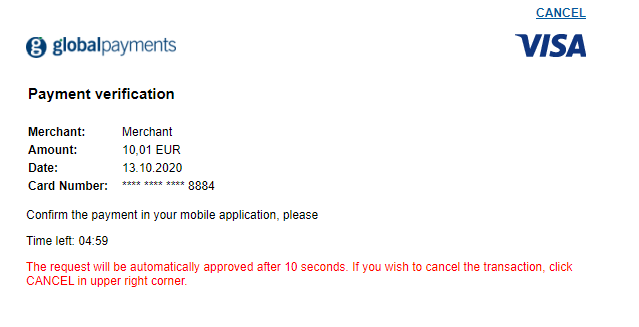
In the Sandbox environment, Global Payments provides an Issuer ACS simulator which allows you to test different challenge outcomes.
Once the challenge has loaded, after ten seconds the simulator will automatically complete the authentication and generate an Authentication Successful response (transStatus = “Y”). This is intended to mimic a scenario where a customer has received a notification on their phone to authenticate using their banking app.
Alternatively, clicking the Cancel button will generate an Authentication Failed response (transStatus = “N”). In either scenario the response will be sent in the Challenge Response message (CRes) to the Challenge Notification Endpoint.
Response Syntax
The following fields will be returned to your application from the Issuer ACS.
| Element/Field | Description |
|---|---|
| Server Transaction ID | Unique identifier for the authentication in the Global Payments 3DS solution (3DS server). Must be used for all requests. |
| ACS Transaction ID | Unique transaction identifier assigned by the ACS. |
| Message Extension | Scheme specific data elements. |
| Message Type | The type of message. In this case it will always be CRes |
| Message Version | 3DS protocol version identifier set by Global Payments. |
| Transaction Status from ACS | Indicates whether a transaction qualifies as an authenticated transaction or account verification. Possible values returned by the ACS: Y - Authentication/Account Verification Successful. N - Not Authenticated/Account Not Verified; Transaction denied. |
Obtain Authentication Data
If the transaction qualifies as authenticated (Transaction Status = Y), the final step before processing the authorization is to obtain the necessary authentication data from the Global Payments 3DS solution. This is the data the ACS passed to Global Payments when the customer completed the challenge.
To do this, we call the authentications endpoint with the relevant 3DS Server Transaction ID.
https://api.sandbox.globalpay-ecommerce.com/3ds2/authentications/{server_trans_id}?merchant_id={merchant_id}&request_timestamp={request_timestamp}
If the customer canceled during the challenge or the authentication did not proceed for another reason, the summary endpoint will also provide you with the information available so you can update your application/website accordingly.
The merchant will receive the Challenge Response message (CRes) encoded in base64 only, which then needs to be decoded. Once decoded, the merchant will be able to see the other parameters of the transaction to proceed to the next step.
The most important information we need for the authorization is the ECI and Authentication Value.
Sample Request
curl "https://api.sandbox.globalpay-ecommerce.com/3ds2/authentications/ad0fffeb-bfff-44d0-881f-b857fe77c5a2?merchant_id=MerchantId&request_timestamp=2019-07-30T08:52:44.991911"
-H "Content-type: application/json"
-H "X-GP-VERSION: 2.2.0"
-H "Authorization: securehash 3acf61a9f49ee7a57fb57d710b97dd00399342a4"
-X GETAuthorization
If you are processing the payment with Global Payments, now that the 3D Secure process is complete, and depending on the ECI value returned, we can proceed to authorization while including the authentication data. The transaction will be processed as normal and may be successful or declined based on standard criteria; sufficient funds, correct security code entered and so on.
Sample Request
<?xml version="1.0" encoding="UTF-8"?>
<request type="auth" timestamp="20180613104233">
  <merchantid>MerchantId</merchantid>
  <account>internet</account>
  <orderid>AWfoT2k9TzuA0wn8Ze_IIQ</orderid>
  <amount currency="EUR">1000</amount>
  <card>
    <number>4263970000005262</number>
    <expdate>0525</expdate>
    <chname>Philip Marlowe</chname>
    <type>VISA</type>
    <cvn>
      <number>123</number>
      <presind>1</presind>
    </cvn>
  </card>
  <autosettle flag="1"/>
  <mpi>
    <eci>5</eci>
    <ds_trans_id>c272b04f-6e7b-43a2-bb78-90f4fb94aa25</ds_trans_id>
    <authentication_value>ODQzNjgwNjU0ZjM3N2JmYTg0NTM=</authentication_value>
    <message_version>2.2.0</message_version>
    <exempt_status>LOW_VALUE</exempt_status>
  </mpi>
  <sha1hash>c87e5fa0858671510a02477d146ef744233e4ba8</sha1hash>
</request>Authentication Reporting
Search for a particular authentication or pull a list based on particular criteria. This request will return a summary object allowing you to see at a high-level the outcome of the authentication. The available filters for search are:
- Start and End Timestamp
- Card BIN
- Directory Server (DS) Transaction ID
- Order ID
For more information on the use cases of this functionality, please refer to the Documentation section.
Sample Request
curl https://api.sandbox.globalpay-ecommerce.com/3ds2/authentications/search
-H "Content-type:  application/json"
-H "Authorization:  securehash fa4952541e657631c044bd5104e5cae50caa68ec"
-H Content-Type: application/json"
-d '{
	"request_timestamp": "2020-04-28T11:54:37.000",
	"merchant_id": "MerchantID",
	"account_id": "ecom3dsecure2",
	"start_timestamp": "2020-04-28T11:00:00.000",
	"end_timestamp": "2020-04-28T13:00:00.000"
}'Sample Response
{
  "page_size": 100,
  "page_number": 1,
  "total_records_available": 3,
  "start_timestamp": "2020-04-28T11:00:00.000",
  "end_timestamp": "2020-04-28T13:00:00.000",
  "transactions": [
    {
      "merchant_id": "MerchantID",
      "account_name": "ecom3dsecure2",
      "order_id": "20200428132617-310",
      "server_trans_id": "77b6ec4c-9f55-4b84-9456-c6098ebd29ca",
      "bin": 401200,
      "scheme": "VISA",
      "authentication_source": "BROWSER",
      "acs_trans_id": "d5dee8e4-41ef-40f0-9488-1af7440a909c",
      "acs_url": "https://test.portal.gpwebpay.com/pay-sim-gpi/sim/acs",
      "trans_status": "AUTHENTICATION_SUCCESSFUL",
      "trans_status_reason": "HIGH_CONFIDENCE"
    },
    {
      "merchant_id": "MerchantID",
      "account_name": "ecom3dsecure2",
      "order_id": "GPTesting-25294",
      "server_trans_id": "e94aaa8e-ad7f-4942-9206-be3fb39b03f8",
      "bin": 401200,
      "scheme": "VISA",
      "authentication_source": "BROWSER",
      "acs_trans_id": "a1ed0905-3f57-44b1-b93a-ed7d8a4de146",
      "acs_url": "https://test.portal.gpwebpay.com/pay-sim-gpi/sim/acs",
      "trans_status": "CHALLENGE_REQUIRED",
      "trans_status_reason": "LOW_CONFIDENCE"
    },
    {
      "merchant_id": "MerchantID",
      "account_name": "ecom3dsecure2",
      "order_id": "GPTesting-25294",
      "server_trans_id": "e94aaa8e-ad7f-4942-9206-be3fb39b03f8",
      "bin": 401200,
      "scheme": "VISA",
      "authentication_source": "BROWSER",
      "acs_trans_id": "2314349a-bbf0-4202-9175-a5253388f019",
      "acs_url": "https://test.portal.gpwebpay.com/pay-sim-gpi/sim/acs",
      "trans_status": "CHALLENGE_REQUIRED",
      "trans_status_reason": "LOW_CONFIDENCE"
    }
  ]
}Error Codes
| HTTP Status Code | HTTP Status | Description |
|---|---|---|
| 400 | Bad Request | Request message validation failure. The response body will indicate which fields were missing or had invalid values. Please see below. If the JSON formatting of the request was invalid, no response body will be returned. |
| 401 | Unauthorised | The value supplied in the Authorization header was incorrect. Please refer to the How to build the Request Hash documentation in the API Explorer. |
| 404 | Not Found | The specified resource in the request could not be found. Resource may refer to a number of elements including:
|
| 405 | Method Not Allowed | An incorrect REST verb when sending the request. |
| 415 | Unsupported Media Type | Unsupported request format. |
| 500 | Internal Server Error | An unexpected internal error occurred with the 3DS Solution. |
| 501 | Not Implemented | The 3DS Solution does not support the card type submitted in the request. |
| 502 | Bad Gateway | Downstream error with either the Card Scheme Directory Server or the Issuer ACS. |
Response Body Detail
In the case of a 400 Bad Request the body of the response will indicate which field(s) were either missing or had invalid values and so on.
Sample Response
{
  "three_dsserver_trans_id": "3bc076c0-b108-4916-8af8-042d1ac91aac",
  "error_code": "201",
  "error_component": "S",
  "error_description": "Required Data Element",
  "error_detail": "deviceChannel",
  "error_message_type": "AReq",
  "message_type": "Erro",
  "message_version": "2.1.0"
}Generate Hash
Follow the steps in this section to build the request security hash, concatenate the specified fields and hash them using the SHA-1 algorithm, concatenate the hashed string with your Shared Secret, hash it again, and add the resulted string to the request.
In addition to SHA-1, you can also generate your hash using SHA-256. The resulting hash should be placed in the <sha256hash> tag instead of the <sha1hash> tag. For more information, contact our support team at ecomsupport@globalpay.com.
Build the Request Hash
Use the dropdown below to select a request type: Check Version, Initiate Authentication, Obtain Authentication Data or Authentication Reporting. After making a selection, the steps on how to build the request hash for that type are provided.