Authorization
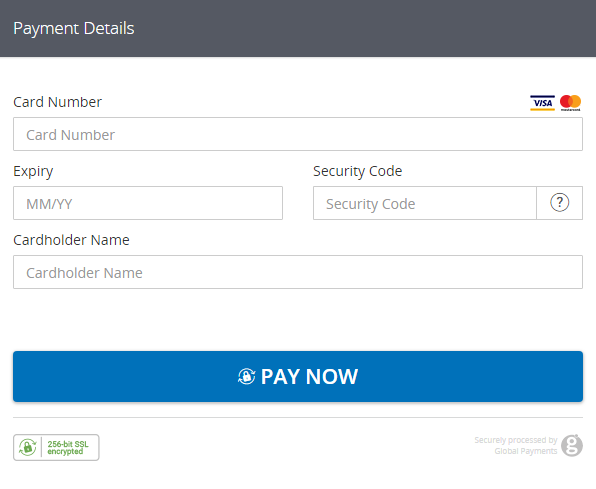
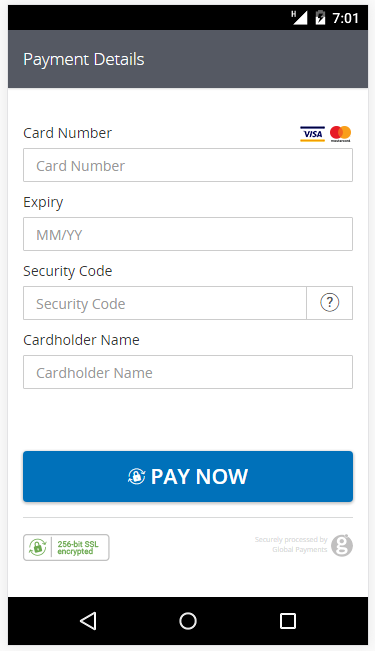
Once you're ready to process a payment in your application or website, send an HTTP POST with the transaction details to our Hosted Payment Page. You can load the HPP in an iFrame to seamlessly integrate it with your customer journey. Alternatively, if you choose a full redirect, use our template system to maintain the style of your application or website. The HPP will render according to the device the customer is using: desktop, tablet, or mobile.
Once complete, we'll return the transaction response to a nominated URL that can be supplied in the POST, or it can be sent to the parent frame/window. The response will contain a hashed string (SHA1HASH) made up of key transaction variables, including the Order ID, Result Code and Timestamp. The SDK will automatically check the hash for you and throw an exception if there is an issue. If you are not using the SDK please see the How to Check the Response Hash documentation for each request type.
The Timestamp returned in the response will be identical to the one sent in the request POST. This, combined with the Order ID and other transaction variables, can be used to definitively link the response received with the transaction request and order created in your application. You should also check the other transaction variables, for example the Amount, against what was stored in your application at the time the request was sent.
Sample request
<form action="https://pay.sandbox.realexpayments.com/pay" method="POST" target="iframe">
  <input type="hidden" name="TIMESTAMP" value="20180613110737">
  <input type="hidden" name="MERCHANT_ID" value="MerchantId">
  <input type="hidden" name="ACCOUNT" value="internet">
  <input type="hidden" name="ORDER_ID" value="N6qsk4kYRZihmPrTXWYS6g">
  <input type="hidden" name="AMOUNT" value="1999">
  <input type="hidden" name="CURRENCY" value="EUR">
  <input type="hidden" name="AUTO_SETTLE_FLAG" value="1">
  <input type="hidden" name="COMMENT1" value="Mobile Channel">
  <input type="hidden" name="HPP_VERSION" value="2">
  <input type="hidden" name="HPP_CHANNEL" value="ECOM">
  <input type="hidden" name="HPP_LANG" value="en">
  <!-- Begin 3D Secure 2 Mandatory and Recommended Fields -->
  <input type="hidden" name="HPP_CUSTOMER_EMAIL" value="test@example.com">
  <input type="hidden" name="HPP_CUSTOMER_PHONENUMBER_MOBILE" value="44|789456123">
  <input type="hidden" name="HPP_BILLING_STREET1" value="Flat 123">
  <input type="hidden" name="HPP_BILLING_STREET2" value="House 456">
  <input type="hidden" name="HPP_BILLING_STREET3" value="Unit 4">
  <input type="hidden" name="HPP_BILLING_CITY" value="Halifax">
  <input type="hidden" name="HPP_BILLING_POSTALCODE" value="W5 9HR">
  <input type="hidden" name="HPP_BILLING_COUNTRY" value="826">
  <input type="hidden" name="HPP_SHIPPING_STREET1" value="Apartment 852">
  <input type="hidden" name="HPP_SHIPPING_STREET2" value="Complex 741">
  <input type="hidden" name="HPP_SHIPPING_STREET3" value="House 963">
  <input type="hidden" name="HPP_SHIPPING_CITY" value="Chicago">
  <input type="hidden" name="HPP_SHIPPING_STATE" value="IL">
  <input type="hidden" name="HPP_SHIPPING_POSTALCODE" value="50001">
  <input type="hidden" name="HPP_SHIPPING_COUNTRY" value="840">
  <input type="hidden" name="HPP_ADDRESS_MATCH_INDICATOR" value="FALSE">
  <input type="hidden" name="HPP_CHALLENGE_REQUEST_INDICATOR" value="NO_PREFERENCE">
  <!-- End 3D Secure 2 Mandatory and Recommended Fields -->
  <!-- Begin Fraud Management and Reconciliation Fields -->
  <input type="hidden" name="BILLING_CODE" value="59|123">
  <input type="hidden" name="BILLING_CO" value="GB">
  <input type="hidden" name="SHIPPING_CODE" value="50001|Apartment 852">
  <input type="hidden" name="SHIPPING_CO" value="US">
  <input type="hidden" name="CUST_NUM" value="6e027928-c477-4689-a45f-4e138a1f208a">
  <input type="hidden" name="VAR_REF" value="Acme Corporation">
  <input type="hidden" name="PROD_ID" value="SKU1000054">
  <!-- End Fraud Management and Reconciliation Fields -->
  <input type="hidden" name="MERCHANT_RESPONSE_URL" value="https://www.example.com/responseUrl">
  <input type="hidden" name="CARD_PAYMENT_BUTTON" value="Pay Invoice">
  <input type="hidden" name="CUSTOM_FIELD_NAME" value="Custom Field Data">
  <input type="hidden" name="SHA1HASH" value="308bb8dfbbfcc67c28d602d988ab104c3b08d012">
  <input type="submit" value="Click To Pay">
</form>HPP desktop example
HPP mobile example
Form Validation
Out of the box, the HPP offers the following real-time form validation:
- Card Number- Card type detection and LUHN check
- Expiry - Input validation and future date check
- Security Code - Length check based on card type (4 digits for American Express, 3 for other card types)
- Cardholder Name - Invalid characters (for example, script tags < /> )
- Input Optimized - For example, the card number field will not accept non-numeric characters.
- Mobile Optimized - On mobile and tablet, only the relevant keyboard type will be displayed to the customer.
Sample Response
Once the customer has completed their transaction, HPP will return the response to the parent frame or nominated URL. At this point you can redirect the customer to the appropriate success or failure page in your application/website, update your database and send an email to your customer based on the outcome of the transaction.
To return the customer to HPP after an unsuccessful transaction, you must ensure that a unique Order ID is used. Any Order ID that has been processed previously will generate an error (501 result code).
[RESULT=00,
 AUTHCODE=12345,
 MESSAGE=[ test system ] Authorised,
 PASREF=14631546336115597,
 AVSPOSTCODERESULT=M,
 AVSADDRESSRESULT=M,
 CVNRESULT=M,
 ACCOUNT=internet,
 MERCHANT_ID=MerchantId,
 ORDER_ID=N6qsk4kYRZihmPrTXWYS6g,
 TIMESTAMP=20180613113227,
 AMOUNT=1001,
 BATCHID=691175,
 CARD_PAYMENT_BUTTON=Pay Invoice,
 MERCHANT_RESPONSE_URL=https://www.example.com/responseUrl,
 HPP_LANG=GB,
 BILLING_CODE=59|123,
 BILLING_CO=GB,
 SHIPPING_CODE=50001|Apartment 852,
 SHIPPING_CO=US,
 COMMENT1=Mobile Channel,
 ECI=5
 AUTHENTICATION_VALUE=ODQzNjgwNjU0ZjM3N2JmYTg0NTM=,
 DS_TRANS_ID=c272b04f-6e7b-43a2-bb78-90f4fb94aa25,
 MESSAGE_VERSION=2.1.0,
 SRD=MMC0F00YE4000000715,
SHA1HASH=8ab81d4437e24a88a08cffb51c15151846bd7b61] Open to Buy (OTB)
Open to Buy (OTB) allows you to check that a card is still valid and active without actually processing a payment against it. This is an alternative to charging the card a small amount (for example, 10c) to obtain the same result. The Security Code (CVN) and Address Verification Service (AVS) checks will also be performed against it.
The amount in the request must be submitted as "0."
It is possible to set the Fraud Filter mode to ACTIVE for OTB transactions. This can be configured by setting the Fraud Filter Mode as ACTIVE. This field is available in the HPP Reference for Fraud Management.
Sample request
<form action="https://pay.sandbox.realexpayments.com/pay" method="POST" target="iframe">
  <input type="hidden" name="TIMESTAMP" value="20180613110737">
  <input type="hidden" name="MERCHANT_ID" value="MerchantId">
  <input type="hidden" name="ACCOUNT" value="internet">
  <input type="hidden" name="ORDER_ID" value="N6qsk4kYRZihmPrTXWYS6g">
  <input type="hidden" name="AMOUNT" value="0">
  <input type="hidden" name="CURRENCY" value="EUR">
  <input type="hidden" name="AUTO_SETTLE_FLAG" value="1">
  <input type="hidden" name="HPP_VERSION" value="2">
  <input type="hidden" name="MERCHANT_RESPONSE_URL" value="https://www.example.com/responseUrl">
  <!-- OTB Field -->
  <input type="hidden" name="VALIDATE_CARD_ONLY" value="1">
  <!-- End OTB Field -->
  <input type="hidden" name="SHA1HASH" value="308bb8dfbbfcc67c28d602d988ab104c3b08d012">
  <input type="submit" value="Click To Pay">
</form>iFrame/WebView optimization
When loading the HPP in an iFrame/WebView, it's useful to know what the current height and width of the payment form is and when this changes. Various events on HPP, including the display of input warning messages or the DCC choice, can significantly alter the size of the form and your iFrame/WebView may have to resize to account for this. If you're using our Libraries and SDKs they'll take care of these fields for you.
Similarly, instead of relying on a HTTP POST to a nominated URL in your application to receive the transaction response, you may wish to have it returned, instead, to your iFrame/WebView. Two additional fields in the request POST will tell HPP to post this information back to the parent frame or window.
HPP embedded
A simple example of embedding the HPP into a checkout using an iFrame:
Sample request
<form action="https://pay.sandbox.realexpayments.com/pay" method="POST" target="iframe">
  <input type="hidden" name="TIMESTAMP" value="20180613104233">
  <input type="hidden" name="MERCHANT_ID" value="MerchantId">
  <input type="hidden" name="ACCOUNT" value="internet">
  <input type="hidden" name="ORDER_ID" value="N6qsk4kYRZihmPrTXWYS6g">
  <input type="hidden" name="AMOUNT" value="1001">
  <input type="hidden" name="CURRENCY" value="EUR">
  <input type="hidden" name="SHA1HASH" value="308bb8dfbbfcc67c28d602d988ab104c3b08d012">
  <input type="hidden" name="AUTO_SETTLE_FLAG" value="1">
  <input type="hidden" name="HPP_VERSION" value="2">
  <!-- iFrame Optimization Fields -->
  <input type="hidden" name="HPP_POST_DIMENSIONS" value="https://www.example.com">
  <input type="hidden" name="HPP_POST_RESPONSE" value="https://www.example.com">
  <!-- End iFrame Optimization Fields -->
  <input type="hidden" name="MERCHANT_RESPONSE_URL" value="https://www.example.com/responseUrl">
  <input type="submit" value="Click here to Purchase">
</form>Data returned
HPP_POST_DIMENSIONS
Each time the height or width of the HPP changes, the new values will be returned to the parent frame or window. You can add an event listener to your parent frame to receive this data. The value will be posted back as a JSON string.
"{ "iframe":{ "height":"552px", "width":"800px" } }"
You can now parse the JSON string and adapt the size of the parent frame if required.
HPP_POST_RESPONSE
Once the transaction is complete, this field tells HPP to post the response back to the parent frame or window, instead of to a nominated URL in your application. Your event listener will receive the following JSON name/value pair string, with the values Base64 encoded.
Once parsed and the result decoded, you can choose to close the HPP frame to display a success/failure message or continue with your customer journey.
{
    "BILLING_CODE": "MzY3fDM5MQ==",
    "BATCHID": "MzM0NDQ3",
    "HPP_FRAUDFILTER_RULE_cf609cf9-9e5a-4700-ac69-8aa09c119305": "UEFTUw==",
    "HPP_FRAUDFILTER_RULE_NAME": "TmFtZSBMaXN0",
    "HPP_FRAUDFILTER_RESULT": "UEFTUw==" "AUTHCODE": "MTIzNDU=",
    "AMOUNT": "MjUwMA==",
    "ACCOUNT": "aW50ZXJuZXQ=",
    "CVNRESULT": "TQ==", "MESSAGE": "WyB0ZXN0IHN5c3RlbSBdIEFVVEhPUklTRUQ=",
    "ORDER_ID": "MjAxNjA2MTcwODE1MDktNDQ4",
    "RESULT": "MDA=",
    "PASREF": "MTQ2NjE1MTMxNzcyODk0MDE=",
    "SHA1HASH": "NDAyYjIzYzMzODMwNGVkMzM1MTc4YTdlNjg2YTYzZmI2ZjcwNjI1ZA==",
    "TIMESTAMP": "MjAxNjA2MTcwODE1MDk=",
    "MERCHANT_ID": "c2Vhbm1hY2RvbWhuYWxsdGVzdA==",
}In order to return the customer to HPP after an unsuccessful transaction, you must ensure that a unique Order ID is used. Any Order ID that has been processed previously will generate an error (501 result code).
Your application can now send this link to your customer, for example via email or SMS. Once clicked, they will be redirected to the HPP to complete payment. The HPP can be customized using our template system to maintain the look and feel of your brand and customer experience.
Once payment is complete, HPP will return the transaction response to a nominated URL that can be supplied in the POST (see example above). Please refer to the Authorization article above on how to handle the response from HPP.
Error handling
If invalid data is submitted the HPP will return JSON string(s) indicating any issues with each fields.
Invalid JSON Object
{
    "errors": [
        {
            "resultCode": 508,
            "internalErrorCode": 61755,
            "errorMessage": "Parsing Failure due to Invalid JSON."
        }
    ]
}
Invalid data submitted (e.g. the name sent in the ACCOUNT field does not exist)
{
    "errors": [
        {
            "resultCode": 506,
            "internalErrorCode": 61201,
            "errorMessage": "Invalid MERCHANT_ID or ACCOUNT. Please contact the merchant."
        }
    ]
}
Invalid data submitted (e.g. the amount sent in the AMOUNT field contained a comma)
{
    "errors": [
        {
            "resultCode": 508,
            "internalErrorCode": 61015,
            "errorMessage": "Invalid characters in AMOUNT field. Please contact the merchant."
        }
    ]
}
Generate hash
Follow the steps in this section to build the request security hash, concatenate the specified fields and hash them using the SHA-1 algorithm, concatenate the hashed string with your Shared Secret, hash it again, and add the resulted string to the request.
In addition to SHA-1, you can also generate your hash using SHA-256. The resulting hash should be placed in the <sha256hash> tag instead of the <sha1hash> tag. For more information, contact our support team at ecomsupport@globalpay.com.
Build the Request hash
Use the dropdown below to select a request type: Authorization or Open to Buy (OTB). After making a selection, the steps on how to build the request hash for that type are provided.
Check hash
Follow the steps in this section to build the response security hash, concatenate the specified fields, and hash them using the SHA-1 algorithm, concatenate the hashed string with your Shared Secret, hash it again, and add the resulted string to the request.
Check the Response hash
The Timestamp returned in the response will be identical to the one sent in the request POST. This, combined with the Order ID and other transaction variables, can be used to definitively link the response received with the transaction request and order created in your application. You should also check the other transaction variables, for example the Amount, against what was stored in your application at the time the request POST was sent.
The steps below apply to both Authorization and Open to Buy (OTB).
Step 1: Using the SHA-1 algorithm, hash a string made up of some of the response values
The blueprint of the hash for the response is:
"timestamp.merchantid.orderid.result.message.pasref.authcode"
So, based on the above example, the initial string to check the hash of the response will be:
"20200205093140.Merchant ID.N6qsk4kYRZihmPrTXWYS6g.00.[ test system ] Authorised.14631546336115597.12345"
Step 2: Concatenate the hashed string with your Shared Secret
After Step 1, you'll have a string like: 28b85cd34d0e0d6b243d58f0e9f7f4bf7da1b882
You'll need to concatenate this with your Shared Secret:
"28b85cd34d0e0d6b243d58f0e9f7f4bf7da1b882.Po8lRRT67a"
Step 3: SHA-1 hash the concatenated string and check the output against what was returned in the HPP response
Our final string that we add to the request should be a hash, using the SHA-1 algorithm, of your concatenated string. For example: 947903969e7aaf996164c680a6669805fe405269