With the HPP, you can accept transactions from a number of worldwide payment methods. This not only widens your customer base to more shoppers across the globe, but also provides the added benefit of managing all your payments through our Reporting tool in Ecommerce Portal. Changes to the HPP request and response, where applicable to the payment method, are detailed in this article.
To see what local and alternative payment methods we support, see Supported Payment Methods.
Message flow
A typical non-card payment method (PM) transaction consists of at least two messages, but the full lifecycle of a non-card PM transaction may consist of four or more requests. For the majority of non-card PMs, the customer is redirected to the landing page of the relevant payment method to complete authentication and transaction authorization.
A typical message flow may consist of the following steps, each of which is outlined below:
- Initiate — The customer reaches the merchant’s checkout page and the HPP call is initiated. The HPP returns the relevant payment methods based on currency and country opted by the customer.
- Redirect to payment method — Following a successful selection of the payment method a payment-set request is made and the customer is redirected to the provided scheme URL to facilitate authentication and authorization.
- Redirect back to your application — The HPP returns the initial response while the customer is redirected back to your application or website.
- Payment status update — The final status of the transaction is communicated to your application or website. The timing of this notification depends on the payment methods opted.
Initiate
In this guide, we set up integration fields for five non-card payment methods (in addition to our standard authorization fields). This will give you access to over 20 non-card payment methods. For others that require additional information, you can browse each payment method below.
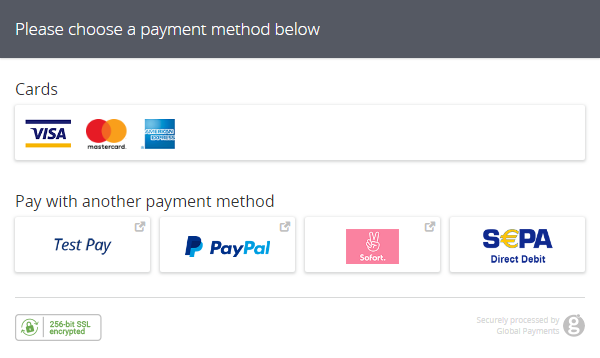
Once the customer makes their choice, the HPP redirects their browser to the payment method so they can authenticate and authorize the transaction. Once that’s complete, they will be redirected back to your application along with the transaction response.
<form action="https://pay.sandbox.realexpayments.com/pay" method="POST" target="iframe">
  <input type="hidden" name="TIMESTAMP" value="20180614095601">
  <input type="hidden" name="MERCHANT_ID" value="MerchantId">
  <input type="hidden" name="ACCOUNT" value="internet">
  <input type="hidden" name="ORDER_ID" value="N6qsk4kYRZihmPrTXWYS6g">
  <input type="hidden" name="AMOUNT" value="1001">
  <input type="hidden" name="CURRENCY" value="EUR">
  <input type="hidden" name="SHA1HASH" value="308bb8dfbbfcc67c28d602d988ab104c3b08d012">
  <input type="hidden" name="HPP_VERSION" value="2">
  <!-- APMs Mandatory Fields -->
  <input type="hidden" name="HPP_CUSTOMER_COUNTRY" value="DE">
  <input type="hidden" name="HPP_CUSTOMER_FIRSTNAME" value="James">
  <input type="hidden" name="HPP_CUSTOMER_LASTNAME" value="Mason">
  <input type="hidden" name="MERCHANT_RESPONSE_URL" value="https://www.example.com/returnUrl">
  <input type="hidden" name="HPP_TX_STATUS_URL" value="https://www.example.com/statusUrl">
  <!-- APMs Mandatory Fields -->
  <!-- APMs Optional Fields -->
  <input type="hidden" name="PM_METHODS" value="cards|paypal|testpay|sepapm|sofort">
  <!-- End APMs Optional Fields -->
  <input type="hidden" name="SHA1HASH" value="308bb8dfbbfcc67c28d602d988ab104c3b08d012">
  <input type="submit" value="Click To Pay">
</form>HPP non-card PM example
The HPP displays whatever PMs are enabled on your account or those you have pre-selected in the request. In addition, it only displays those PMs that are available in the country submitted in the HPP_CUSTOMER_COUNTRY field.
Pre-selecting payment methods
To present the most relevant payment methods to your customer, you can pre-select one or more in the request. To do this, include the optional PM_METHODS field as outlined in the sample above.
| Element/Field | Category | Format | Type | Length | Description |
|---|---|---|---|---|---|
|
Timestamp |
string |
numeric |
M |
14 |
Entered in the following format: YYYYMMDDHHMMSS. If the timestamp is more than a day (86400 seconds) away from the current time, the request will be rejected. Automatically set if using the SDK. |
| Merchant ID | string | alphanumeric | M | 1-50 |
Your Client ID assigned by Global Payments. Allowed characters: [a-zA-Z0-9.] |
| Account | string | alphanumeric | O | 0-30 |
The sub-account for this request to be processed through. Allowed characters: [a-zA-Z0-9.] |
| Order Id | string | alphanumeric | M | 1-50 |
A merchant supplied reference to identify this transaction. Must be unique for each attempt. Allowed characters: [a-zA-Z0-9_-] |
| Amount | integer | M | 1-11 | The amount should be in the smallest unit of the required currency. For example: 2000 = €20.00 | |
| Currency | string | ISO 4217 | M | 3 | The processing currency of the transaction. Please see the list of Currency Codes. |
| AutoSettle/AutoCapture Flag | string | enum | M |
Used to specify the settlement/capture type. Allowed values: |
|
| HPP Version | integer | M | 1 | This must be set to 2. | |
| Billing or Shipping Country | string | ISO 3166-1 | M | 0-50 |
The country of the billing or shipping address. Allowed characters: [a-zA-Z0-9.-] |
| First Name | string | alphanumeric | M | 1-60 | Customer’s first name.The value should be the same as the value that appears on the card. |
| Last Name | string | alphanumeric | M | 1-60 | Customer’s last name. The value should be the same as the value that appears on the card. |
| Merchant Response URL | string | Standard URL Format | O | 0-255 | Used to set which URL in your application the transaction response will be sent to. A fixed URL can also be added to your account by our support team. |
| Status Update URL | string | URL | M | 1-2083 | The endpoint which will receive payment status messages. This will include the result of the transaction or any updates to the transaction status. For certain asynchronous payment methods these notifications may come minutes, hours or days after the initial authorization. |
| PM Methods | string | alphanumeric | O | 0-100 |
Optional field which allows you to select payment method(s) to offer the customer, or route customer to a specific one. "cards|paypal|sofort" If you offer a specific range of payment methods you should also provide the additional required and optional fields for any of these payment methods.If the country is not passed in this field all Payment method will be shown Allowed characters: [a-z|] |
| Sha1hash | string | alphanumeric | M | 40 |
The signature for this request is made up of transaction elements and your Shared Secret. Automatically set by the SDK. Allowed characters: [0-9a-fA-F] |
Redirect response
Once the customer completes their transaction with the payment method, they are redirected to the Response URL supplied in the HPP request (alternatively, our support team can add a fixed URL to your account). The current status of the transaction will also be sent as an HTTP POST to that Status URL. The POST message is limited to 5,000 characters. Once the character limit is reached, no more values are included—that is, your application or website won’t receive any truncated transaction variables.
Depending on the payment method used, the message sent to the Response URL might not indicate the final status of the transaction. In the example below, the current result message is PENDING and the fund status is WAITING. The final transaction status will be sent to the Status URL you provided in the HPP request. In the case of some payment methods, this message to the Status URL will be sent at almost exactly the same time that the customer is redirected to your Response URL.
In the case of asynchronous payment methods, the Response URL should be treated as an interim step. Your application might put the customer on hold for a few seconds while it checks to see if the Status URL was sent a final update. You can then redirect the customer to a final success or failure page. In the event of the Status URL not receiving the final status update within your determined time limit, you can display a message to the customer informing them that their order will be processed when the final status is received.
[RESULT=01,
 MESSAGE=PENDING,
 FUNDSTATUS=WAITING
 PASREF=14631546336115597,
 ACCOUNT=internet,
 MERCHANT_ID=MerchantId,
 ORDER_ID=N6qsk4kYRZihmPrTXWYS6g,
 TIMESTAMP=20171003164640,
 AMOUNT=1001,
 MERCHANT_RESPONSE_URL=https://www.example.com/responseUrl,
 HPP_LANG=GB,
 SHIPPING_CODE=R90|ZQ7,
 SHIPPING_CO=GB,
 BILLING_CODE=E77|4QJ,
 BILLING_CO=GB,
 COMMENT1=Mobile Channel,
 COMMENT2=Down Payment,
 PAYMENTMETHOD=sofort,
 WAITFORNOTIFICATION=0,
 PAYMENTPURPOSE=37TC6LD Test Transaction&
 HPP_CUSTOMER_FIRSTNAME=James,
 HPP_CUSTOMER_LASTNAME=Mason,
 HPP_CUSTOMER_COUNTRY=DE,
 HPP_CUSTOMER_BANK_ACCOUNT=9876543210,
 HPP_CUSTOMER_IBAN=DE84837473949793743749,
 HPP_CUSTOMER_BIC=GENODEF1GW1,
 HPP_CUSTOMER_BANK_NAME=Volksbank Raiffeisenbank,
 HPP_CUSTOMER_BANK_CODE=13061028,
SHA1HASH=8ab81d4437e24a88a08cffb51c15151846bd7b61]Status update
As mentioned previously, depending on the payment method used, the Response URL might not receive the final transaction status. The Status URL field will receive the final status. Again, depending on the payment method used, this can happen at the same time as the customer is redirected to your Response URL, moments after—or, potentially, the final status update might come days later. So, the Response URL acts as an interim processing page, waiting for the final update.
The status of the transaction will be sent as a HTTP GET. The transaction variables will be URL encoded, and the message is limited to 2,048 characters. Once the character limit is reached, no more values are included. That means your application won’t receive any truncated transaction variables.
For payment methods in which you expect the final status update to come days later, your Status URL will need to accept the message sent by Global Payments, find the correct order in your application, and update the status accordingly. You may want to inform the customer at this point that their payment was accepted. You can also initiate the dispatch of items to the customer.
In summary, the Status URL will need to be an endpoint in your application capable of accepting a HTTP GET message. This will inform your application of the final status of a transaction. Upon receipt, it can validate the response, check the details against what your application has stored, and update accordingly.
sha1hash=0aa43f1d647819efd238e46fe3301d80076a8648&
timestamp=20160829141523&
merchantid=MerchantId&
orderid=N6qsk4kYRZihmPrTXWYS6g&
result=00&
message=SUCCEEDED&
pasref=14627849160897986&
paymentmethod=sofort&
waitfornotification=0&
fundstatus=RECIEVED&
paymentpurpose=37TC6LD Test Transaction&
acountholdername=James Mason&
country=DE&
accountnumber=9876543210&
iban=DE84837473949793743749&
bic=GENODEF1GW1&
bankname=Volksbank Raiffeisenbank&
bankcode=13061028&
redirectoptional=0Test Pay
To test your integration, we provide a simple simulator application that allows you to test the customer being redirected to the HPP and the payment method, along with your Response and Status URLs.
<form action="https://pay.sandbox.realexpayments.com/pay" method="POST" target="iframe">
  <input type="hidden" name="TIMESTAMP" value="20180614095601">
  <input type="hidden" name="MERCHANT_ID" value="MerchantId">
  <input type="hidden" name="ACCOUNT" value="internet">
  <input type="hidden" name="ORDER_ID" value="N6qsk4kYRZihmPrTXWYS6g">
  <input type="hidden" name="AMOUNT" value="1001">
  <input type="hidden" name="CURRENCY" value="EUR">
  <input type="hidden" name="SHA1HASH" value="308bb8dfbbfcc67c28d602d988ab104c3b08d012">
  <input type="hidden" name="AUTO_SETTLE_FLAG" value="1">
  <input type="hidden" name="HPP_VERSION" value="2">
  <!-- APMs Mandatory Fields -->
  <input type="hidden" name="HPP_CUSTOMER_COUNTRY" value="DE">
  <input type="hidden" name="HPP_CUSTOMER_FIRSTNAME" value="James">
  <input type="hidden" name="HPP_CUSTOMER_LASTNAME" value="Mason">
  <input type="hidden" name="MERCHANT_RESPONSE_URL" value="https://www.example.com/returnUrl">
  <input type="hidden" name="HPP_TX_STATUS_URL" value="https://www.example.com/statusUrl">
  <!-- APMs Mandatory Fields -->
  <input type="hidden" name="SHA1HASH" value="308bb8dfbbfcc67c28d602d988ab104c3b08d012">
  <input type="submit" value="Click To Pay">
</form>HPP non-card PM example
Test Pay Simulator page
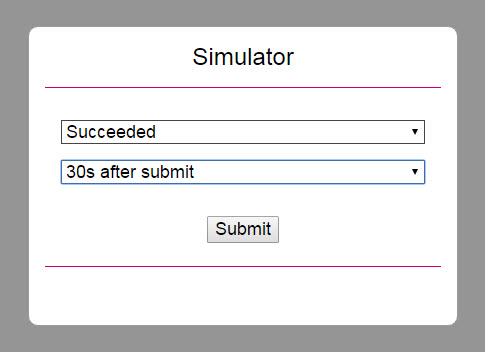
The Simulator page provides a range of messages to send to the Response and Status URLs. The delay selection determines when the Status URL receives the final status update. This is so you can test payment methods where the final status may be sent moments, hours, or even days after the transaction is completed by the customer.
The final status can also be sent at the same time as the redirection and message to the Response URL (No Delay). The responses returned by the simulator will be the same format of those outlined in the other steps in this guide.
The response and delay selections are shown below.
| Response Selection | Delay Selection |
| Succeeded | No delay |
| Pending | 30s after submit |
| Failed UserAbort | 1m after submit |
| Failed InputData | 5m after submit |
| Failed LocalDecline | 15m after submit |
| Failed RemoteDecline | 1h after submit |
| Failed Timeout | |
| Failed LocalError | |
| Failed RemoteError | |
| Failed Unknown |
Supported payment methods
Browse all the non-card payment methods we support or search for a specific one. If additional fields are required, these will be documented along with the countries and currencies that are available with the payment method.
Generate hash
Follow the steps in this section to build the request security hash, concatenate the specified fields and hash them using the SHA-1 algorithm, concatenate the hashed string with your Shared Secret, hash it again, and add the resulted string to the request.
In addition to SHA-1, you can also generate your hash using SHA-256. The resulting hash should be placed in the <sha256hash> tag instead of the <sha1hash> tag. For more information, contact our support team at ecomsupport@globalpay.com.
Build the Request hash
Use the drop-down arrow below to select a request type: Initiate. After making a selection, the steps on how to build the request hash for that type are provided.
Check hash
Follow the steps in this section to build the response security hash, concatenate the specified fields and hash them using the SHA-1 algorithm, concatenate the hashed string with your Shared Secret, hash it again, and add the resulted string to the request.
Check the Response hash
Use the drop-down arrow below to select a request type: Redirect Response or Status Update. After making a selection, the steps on how to check the response hash for that type are provided.
Postman collection
Our Postman collection for non-card payment methods for the HPP is available for downloading. You can use this collection to test transactions for all of our alternative and local supported payment methods via the Ecommerce API.
The zip file below contains the following files:
- LPM Postman Collection — A JSON file that contains HPP, XML, and JSON calls
- LPM Environment — A JSON file for use with the HPP and JSON calls
To download the collection (.zip file), click the button below: