You can easily add PayPal to the HPP to maximize conversion on your checkout with no integration changes required. PayPal transactions will also be available in Ecommerce Portal allowing for simpler consolidated reporting. The standard flow for a PayPal transaction includes the following steps:
- The payment is initiated on the HPP and the customer is redirected to PayPal.
- On the PayPal site the an choose to proceed with the transaction or not.
- Your application or website receives the response of the transaction from the HPP.
Sample Request
In the request you can pass transaction references and a transaction description to PayPal if required. In order to qualify for PayPal's Seller Protection, you must pass the customer’s shipping address in the request.
<form action="https://pay.sandbox.realexpayments.com/pay" method="POST" target="iframe">
  <input type="hidden" name="TIMESTAMP" value="20180614095601">
  <input type="hidden" name="MERCHANT_ID" value="MerchantId">
  <input type="hidden" name="ACCOUNT" value="internet">
  <input type="hidden" name="ORDER_ID" value="N6qsk4kYRZihmPrTXWYS6g">
  <input type="hidden" name="AMOUNT" value="1001">
  <input type="hidden" name="CURRENCY" value="EUR">
  <input type="hidden" name="VAR_REF" value="Invoice 7564a">
  <input type="hidden" name="COMMENT1" value="New Subscription">
  <input type="hidden" name="AUTO_SETTLE_FLAG" value="1">
  <input type="hidden" name="HPP_VERSION" value="2">
  <input type="hidden" name="MERCHANT_RESPONSE_URL" value="https://www.example.com/returnUrl">
  <!-- PayPal Specific Fields-->
  <input type="hidden" name="SHIPPING_ADDRESS_ENABLE" value="1">
  <input type="hidden" name="ADDRESS_OVERRIDE" value="1">
  <input type="hidden" name="HPP_NAME" value="James Mason">
  <input type="hidden" name="HPP_STREET" value="Flat 123">
  <input type="hidden" name="HPP_STREET2" value="House 456">
  <input type="hidden" name="HPP_CITY" value="Chicago">
  <input type="hidden" name="HPP_STATE" value="IL">
  <input type="hidden" name="HPP_ZIP" value="50001">
  <input type="hidden" name="HPP_COUNTRY" value="US">
  <input type="hidden" name="HPP_PHONE" value="015552390">
  <!-- End PayPal Specific Fields-->
  <input type="hidden" name="SHA1HASH" value="308bb8dfbbfcc67c28d602d988ab104c3b08d012">
  <input type="submit" value="Click To Pay">
</form>PayPal Example
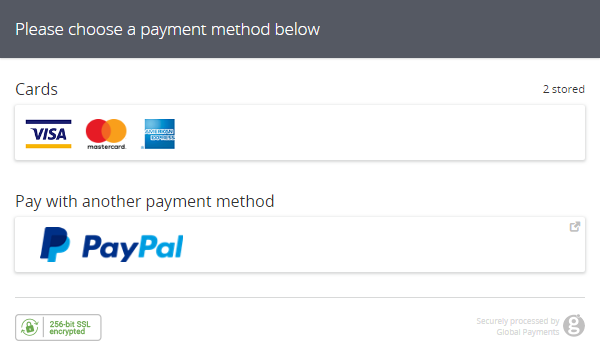
If the customer selects PayPal payment method selection page, they will be redirected to the PayPal website where they will be asked to authenticate themselves. After entering their correct username and password, the customer can proceed in two ways:
- Accept the transaction and click “Pay Now”. In this scenario, the transaction will be processed for payment and the customer will be redirected back to the Global Payments secure server. A POST response is sent to your Response URL with additional PayPal data.
- Cancel the transaction. In this scenario, the transaction will not be processed. The customer will be redirected back to the Global Payments secure server and a POST response will be sent to your Response URL. The response code for cancelled PayPal transactions will be 110.
Additional Request Fields Syntax
Type indicates whether the element is Mandatory (M), Optional (O), or Conditional (C) - dependent on another field.
Unless otherwise stated in the description, the allowed special characters in an alphanumeric string field are [/.-_‘,␣]
| Element/Field | Category | Format | Type | Length | Description |
|---|---|---|---|---|---|
| Shipping Address Enable | boolean | O | This field determines whether the passing of PayPal shipping address details will be activated or not. | ||
| Address Override | boolean | O | Determines whether the shipping address can be changed by the customer on the PayPal review page. | ||
| First Name | string | alphanumeric | O | 0-60 | First name of the person receiving the shipment. |
| Last Name | string | alphanumeric | O | 0-60 | Last name of the person receiving the shipment. |
| Street 1 | string | alphanumeric | M | 1-60 | First line of the billing address of the customer. |
| Street 2 | string | alphanumeric | M | 0-60 | Second line of the billing address of the customer. |
| City | string | alphanumeric | M | 1-50 | City of the billing address. |
| State | string | alphanumeric | O | 0-40 | State or province of the customer's address. Allowed special characters: [-*?/#␣] |
| Postcode | string | alphanumeric | O | 0-20 | Postcode of the customer address. |
| Billing or Shipping Country | string | alphanumeric | O | 0-50 | The country of the billing or shipping address. Allowed characters: [a-zA-Z0-9.-] |
| Phone Number | string | alphanumeric | O | 0-15 | Phone number for the shipping address. |
Sample Response
[RESULT=00,
 MESSAGE=SUCCESS,
 ACCOUNT=internet,
 MERCHANT_ID=MerchantId,
 ORDER_ID=20181004103304-5bb5ec6022e76,
 TIMESTAMP=20181004103304,
 AMOUNT=1001,
 MERCHANT_RESPONSE_URL=https://www.example.com/responseUrl,
 HPP_LANG=EN,
 HPP_CUSTOMER_COUNTRY=GB,
 SHA1HASH=3353e31885bf35f593262532c6108fd4f8dc940d,
 PASREF=15386492591866889,
 PAYMENTMETHOD=paypal,
PM_OPTS=<!-- PayPal Response, See Sample Below -->]Generate Hash
Follow the steps in this section to build the request security hash, concatenate the specified fields and hash them using the SHA-1 algorithm, concatenate the hashed string with your Shared Secret, hash it again, and add the resulted string to the request.
In addition to SHA-1, you can also generate your hash using SHA-256. The resulting hash should be placed in the <sha256hash> tag instead of the <sha1hash> tag. For more information, contact our support team at ecomsupport@globalpay.com.
Build the Request Hash
Use the dropdown below to select a request type: PayPal Example. After making a selection, the steps on how to build the request hash for that type are provided.
Check Hash
Follow the steps in this section to build the response security hash, concatenate the specified fields and hash them using the SHA-1 algorithm, concatenate the hashed string with your Shared Secret, hash it again, and add the resulted string to the request.
Check the Response Hash
Use the dropdown below to select a request type: PayPal Example. After making a selection, the steps on how to check the response hash for that type are provided.