Loading...


By integrating with our PrestaShop plugin, you gain access to the full range of our solutions, including PCI DSS scope reduction via Hosted Fields (Drop-In UI), credit and debit processing, Digital Wallets, Card Storage, 3D Secure, and Order Management.
Click the button below to download this plugin and view any related documentation available.
Go to Plugin/MarketplaceOur PrestaShop plugin requires credentials to our Unified Payments gateway. Test credentials can be obtained after registering with our developer portal. Once registration is complete, the required App Key and App Id can be found under your account. For more information and instructions, see Register / Create an App.
To integrate with Apple Pay, you’ll need to obtain the encrypted payment credentials. To do this, follow the steps in the applicable Apple guide below:
For more Apple Pay setup information, see our Apple Pay article.
To configure this plugin, follow these steps.
The Unified Payments gateway offers payment through credit and debit cards. Additional payment methods like Digital Wallets (Google Pay, Apple Pay, and PayPal), Buy Now Pay Later (Affirm, Clearpay, and Klarna), and Bank Payment can be enabled via the Unified Payments gateway.
The Unified Payments Settings allows you to enter your overall account credentials.
Navigate to Modules > Module Manager > Global Payments, click Configure
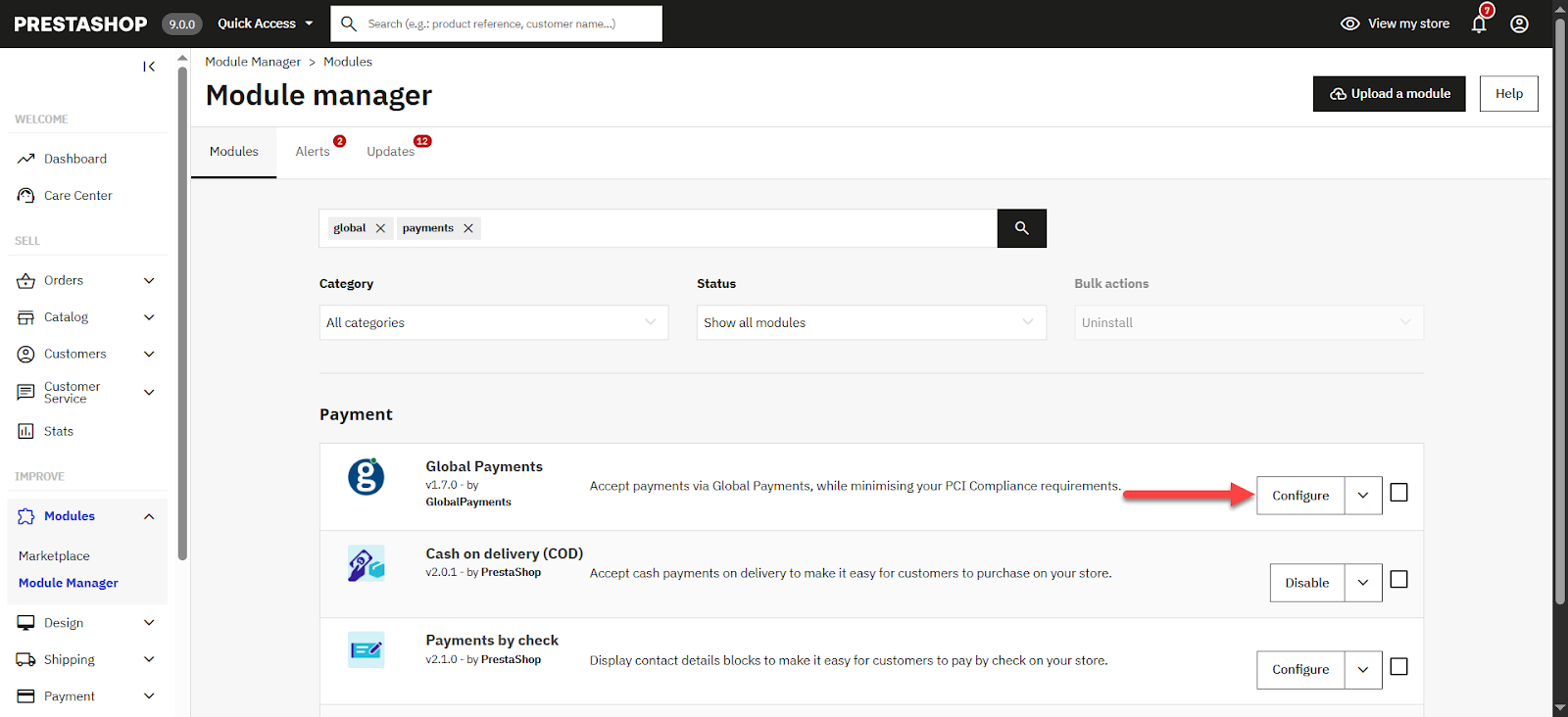
Under the Unified Payments tab toggle Enable to Yes
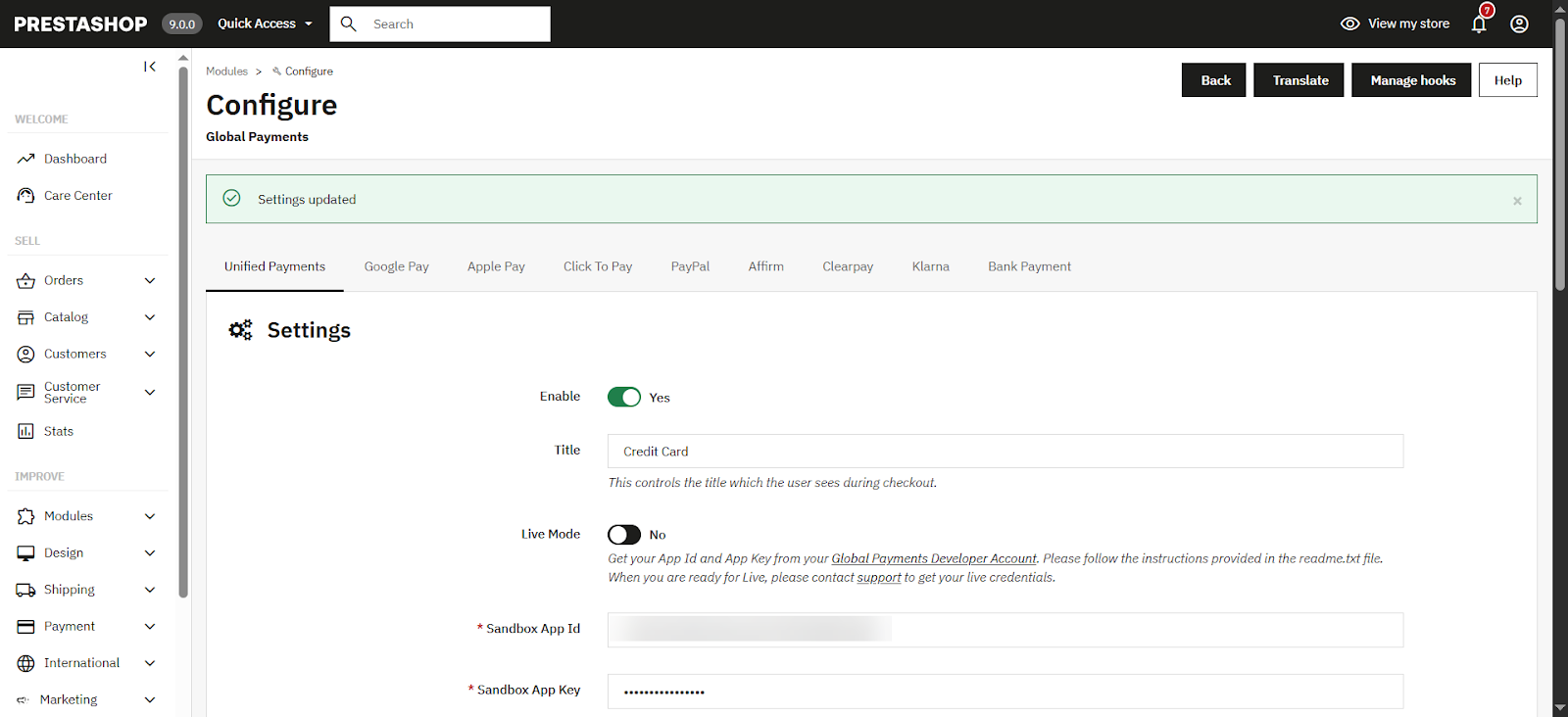
Configure the remaining fields under settings and click Save.
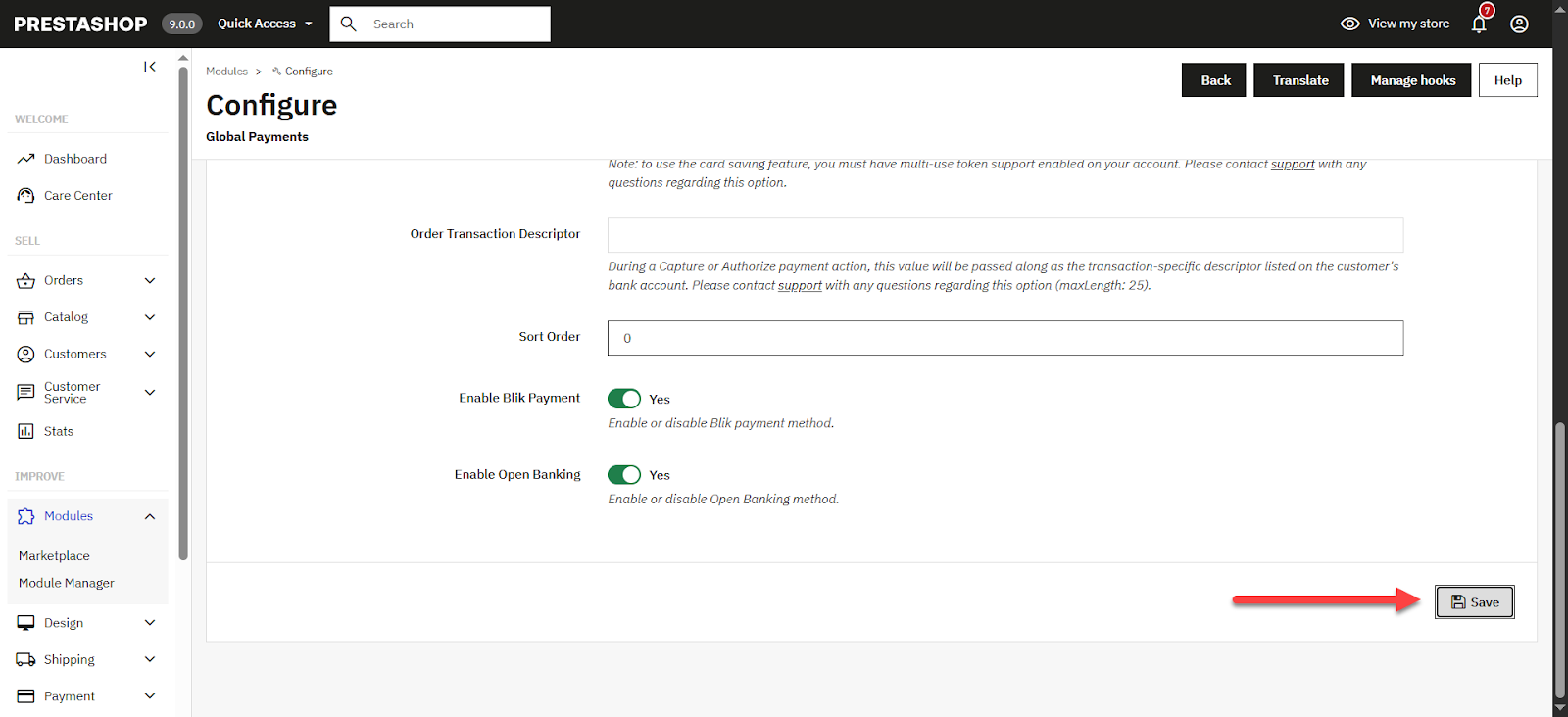
The following table describes the fields that appear on the Unified Payments Settings tab for Prestashop.
| Field | Description |
|---|---|
| Enable/Disable | Determines if the payment method is available at your Prestashop store’s checkout. |
| Title | Description of the payment method displayed to the customer at checkout, e.g.,"Credit Card." The title will also be recorded in Prestashop to indicate how the transaction was processed. |
| Live Mode | Allows you to switch between the Live and Sandbox versions of your account with us. |
| Sandbox/Live App Id | The App Id and App Key are used to obtain a bearer access token to execute API actions. For more information, see the Sandbox credentials section. |
| Sandbox/Live App Key | The App Id and App Key are used to obtain a bearer access token to execute API actions. For more information, see the Sandbox credentials section. |
| Sandbox/Live Account Name | Allows you to select the merchant account name associated with your Global Payments merchant account |
| Credentials Check | Determines if your credentials are valid. Note: The payment methods will not be displayed at checkout if the credentials are not correct. |
| Enable Logging | Allows logging of all requests to and from the gateway. Can also log private data. Should only be enabled in a development or stage environment. Logs can be found at Prestashop > Status > Logs. |
| Contact Url | A link to an About or Contact page on your website with customer care information (maxLength: 50). |
| Enable 3D Secure | Enables the 3D Secure feature. For more details, see the 3D Secure section. |
| Payment Action | The sale transaction can be flagged for automatic capture (Authorize + Capture) or flagged as requiring a separate capture action later (Authorize only). |
| Allow Card Saving | Determines whether a customer's card can be saved to our Card Storage solution following a successful transaction. If set to Yes, a checkbox displays on the Hosted Fields form that gives the customer the choice to store their card. If set to No, no checkbox displays, and the card is not stored. |
| Order Transaction Descriptor | During a Capture or Authorize payment action, this value will be passed along as the transaction-specific descriptor listed on the customer's bank account. |
| Sort Order |
The Google Pay Settings tab allows you to enter your overall account credentials. The following table describes the fields that appear on the Google Pay Settings tab for PrestaShop.
| Field | Description |
|---|---|
| Enable | Determines if the payment method is available at your PrestaShop store’s checkout. |
| Title | Description of the payment method displayed to the customer at checkout, e.g., "Pay with Google Pay." The title will also be recorded in PrestaShop to indicate how the transaction was processed. |
| Merchant ID | The Merchant ID provided by us. |
| Google Merchant ID | The Merchant ID provided by Google. |
| Accepted Cards | Determines what card types can be used at checkout when paying with Google Pay. |
| Allowed Card Auth Methods | Methods allowed to authenticate a card transaction. PAN_ONLY: This authentication method is associated with payment cards stored on file with the user's Google account. CRYPTOGRAM_3DS: This authentication method is associated with cards stored as Android device tokens. PAN_ONLY can expose the Funding Primary Account Number (FPAN), which requires an additional Strong Customer Authentication (SCA) step up to a 3DS check. Currently, we don’t support the Google Pay SCA challenge with an FPAN. For the best acceptance, we recommend that you provide only the CRYPTOGRAM_3DS option. |
| Button Color | Determines the color of the Google Pay button displayed at checkout. |
| Payment Action | The Sale transaction can be flagged for automatic capture (Charge) or flagged as requiring a separate capture action later (Authorize). |
| Sort Order | Sort order for checkout. |
The Apple Pay Settings tab allows you to enter your overall account credentials. The following table describes the fields that appear on the Apple Pay Settings tab for PrestaShop.
| Field | Description |
|---|---|
| Enable | Determines if the payment method is available at your PrestaShop store’s checkout. |
| Title | Description of the payment method displayed to the customer at checkout, e.g., "Pay with Apple Pay." The title will also be recorded in PrestaShop to indicate how the transaction was processed. |
| Apple Merchant ID | The Merchant ID provided by Apple. For more info on creating an Apple Merchant ID, see Apple Pay Programming. |
| Apple Merchant Cert Path | The path for the .crt.pem file. This path is the relative path from the root. For example, if you store this certificate as <prestashop_location>/.well-known/ApplePay.crt.pem, the path should be .well-known/ApplePay.crt.pem For more Apple Pay setup information, see the Apple Pay credentials section or our Apple Pay article. |
| Apple Merchant Key Path | The path for the .key.pem file. For more Apple Pay setup information, see the Apple Pay credentials section or our Apple Pay article. |
| Apple Merchant Key Passphrase | The encryption key for the .key.pem file. If the .key.pem file is not encrypted, this field must be empty. |
| Apple Merchant Domain | To fill this field, you will need to register and validate your domain in your Apple account first. Once validated, insert the domain value in your Apple account for the current domain into this field. |
| Apple Merchant Display Name | The text displayed to the customer in the Apple Pay dialog box. |
| Accepted Cards | Determines what types of cards can be used at checkout when paying with Apple Pay. |
| Payment Action | The Sale transaction can be flagged for automatic capture (Charge) or flagged as requiring a separate capture action later (Authorize). |
The PayPal Settings tab allows you to enter your overall account credentials. The following table describes the fields that appear on the Settings tab.
| Field | Description |
|---|---|
| Enable | Determines if the payment method is available at your PrestaShop store’s checkout. |
| Title | Description of the payment method displayed to the customer at checkout, e.g., "Pay with PayPal." The title will also be recorded in PrestaShop to indicate how the transaction was processed. |
| Payment Action | The Sale transaction can be flagged for automatic capture (Charge) or flagged as requiring a separate capture action later (Authorize). |
| Sort Order | Sort order for checkout. |
The Affirm Settings tab allows you to enter your overall account credentials. The following table describes the fields that appear on the Affirm Settings tab for PrestaShop.
| Field | Description |
|---|---|
| Enable | Determines if the payment method is available at your PrestaShop store’s checkout. |
| Title | Description of the payment method displayed to the customer at checkout, e.g., "Pay with Affirm." The title will also be recorded in PrestaShop to indicate how the transaction was processed. |
| Payment Action | The Sale transaction can be flagged for automatic capture (Charge) or flagged as requiring a separate capture action later (Authorize). |
The Clearpay Settings tab allows you to enter your overall account credentials. The following table describes the fields that appear on the Clearpay Settings tab for PrestaShop.
| Field | Description |
|---|---|
| Enable | Determines if the payment method is available at your PrestaShop store’s checkout. |
| Title | Description of the payment method displayed to the customer at checkout, e.g., "Pay with Clearpay." The title will also be recorded in PrestaShop to indicate how the transaction was processed. |
| Payment Action | The Sale transaction can be flagged for automatic capture (Charge) or flagged as requiring a separate capture action later (Authorize). |
The Klarna Settings tab allows you to enter your overall account credentials. The following table describes the fields that appear on the Klarna Settings tab for PrestaShop.
| Field | Description |
|---|---|
| Enable | Determines if the payment method is available at your PrestaShop store’s checkout. |
| Title | Description of the payment method displayed to the customer at checkout, e.g., "Pay with Klarna." The title will also be recorded in PrestaShop to indicate how the transaction was processed. |
| Payment Action | The Sale transaction can be flagged for automatic capture (Charge) or flagged as requiring a separate capture action later (Authorize). |
The Bank Payment Settings tab allows you to enter your overall account credentials. The following table describes the fields that appear on the Settings tab.
| Field | Description |
|---|---|
| Enable | Determines if the payment method is available at your PrestaShop store’s checkout. |
| Title | Description of the payment method displayed to the customer at checkout, e.g., "Pay with Bank Payment." The title will also be recorded in PrestaShop to indicate how the transaction was processed. |
| Account Number | Account number for bank transfers within the United Kingdom (UK-to-UK bank). Required only if no bank details are stored on the account. |
| Account Name | The name of the individual or business on the bank account. Required only if no bank details are stored on the account. |
| Sort Code | Six digits that identify the bank and branch of an account. Included with the account number for UK-to-UK bank transfers. Required only if no bank details are stored on the account. |
| IBAN | Key field for bank transfers for Europe-to-Europe transfers. Required only if no bank details are stored on the account. Required only for EUR transacting merchants. |
| Countries | Allows you to input a COUNTRY or string of COUNTRIES to limit what is shown to the customer. Including a country overrides your default account configuration. Format: List of ISO 3166-2 (two characters) codes separated by a | Example: FR|GB|IE |
| Currencies | The payment method will be displayed at checkout only for the selected currencies. |
| Payment Action | The Sale transaction can be flagged for automatic capture (Charge) or flagged as requiring a separate capture action later (Authorize). |
| Sort Order | Sort order for checkout. |
Use the test card numbers below to verify that your integration was set up properly. For testing, you can use any cardholder name, any expiry date in the future, and any CVN security code.
For a full list of test cards, see our Test Cards article.
Now that you’ve successfully installed the plugin and tested to see if it was installed properly, you’re all set to go live in the Production environment. For more information, see our Integration Validation to Go Live article.
Connect your integration for Production:
Go to Production with Google Pay:
Go to Production with Apple Pay:
Go to Production with PayPal:
Go to Production with Affirm:
Go to Production with Clearpay:
Go to Production with Klarna:
Go to Production with Bank Payment:
Going to Production with BLIK:
Set up the store information within Prestashop Configure > Shop Parameters > Contact > Stores and Save changes
Note: For BLIK to work properly, the country and currency must be configured for Poland.
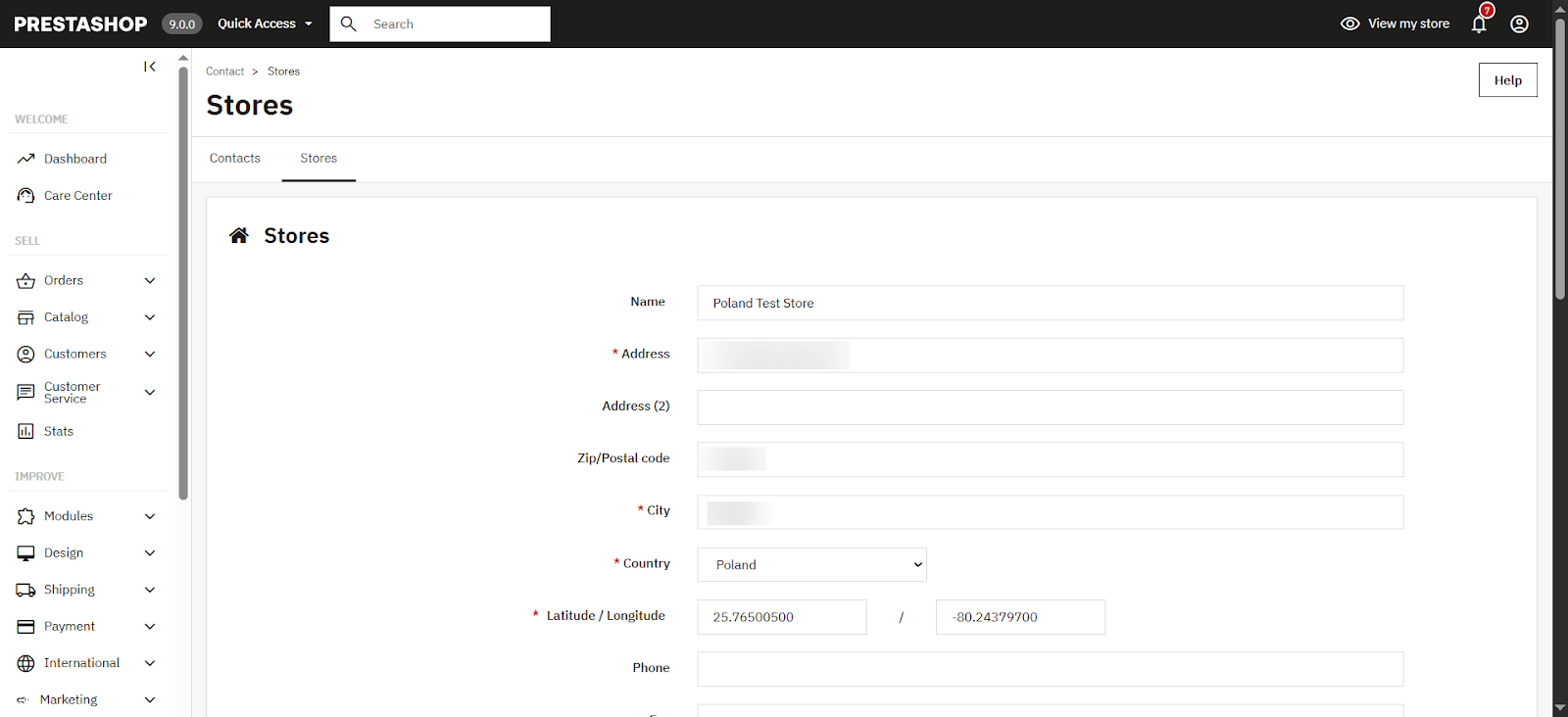
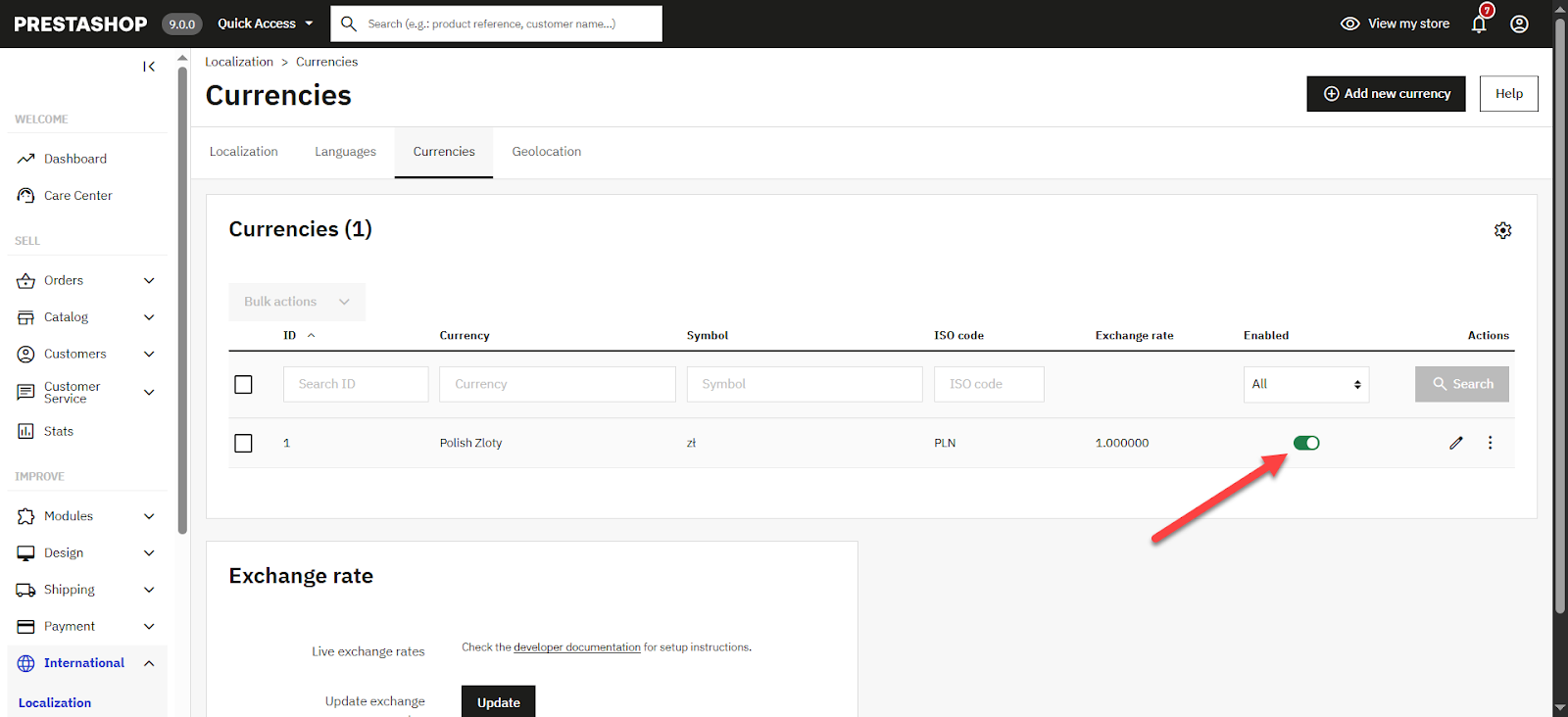
If you do not see the desired currency, you can add a new currency by downloading the localization pack associated with the currency you wish to download. For example, if you wish to add the Polish zlotys to your store, download the "Poland" pack. Once your localization pack has been imported:
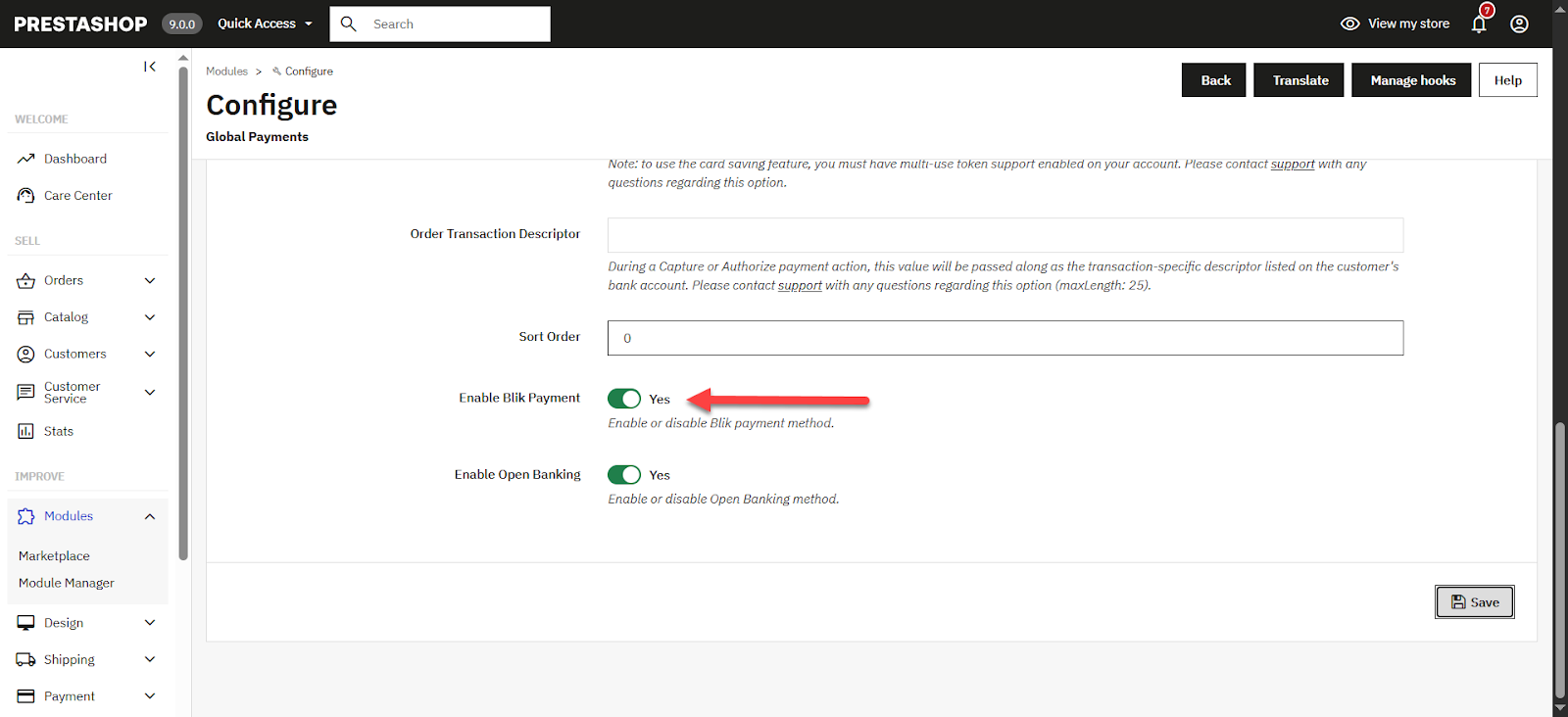
Enable BLIK within the shopping cart Payments Settings
Going to Production with Open Banking:
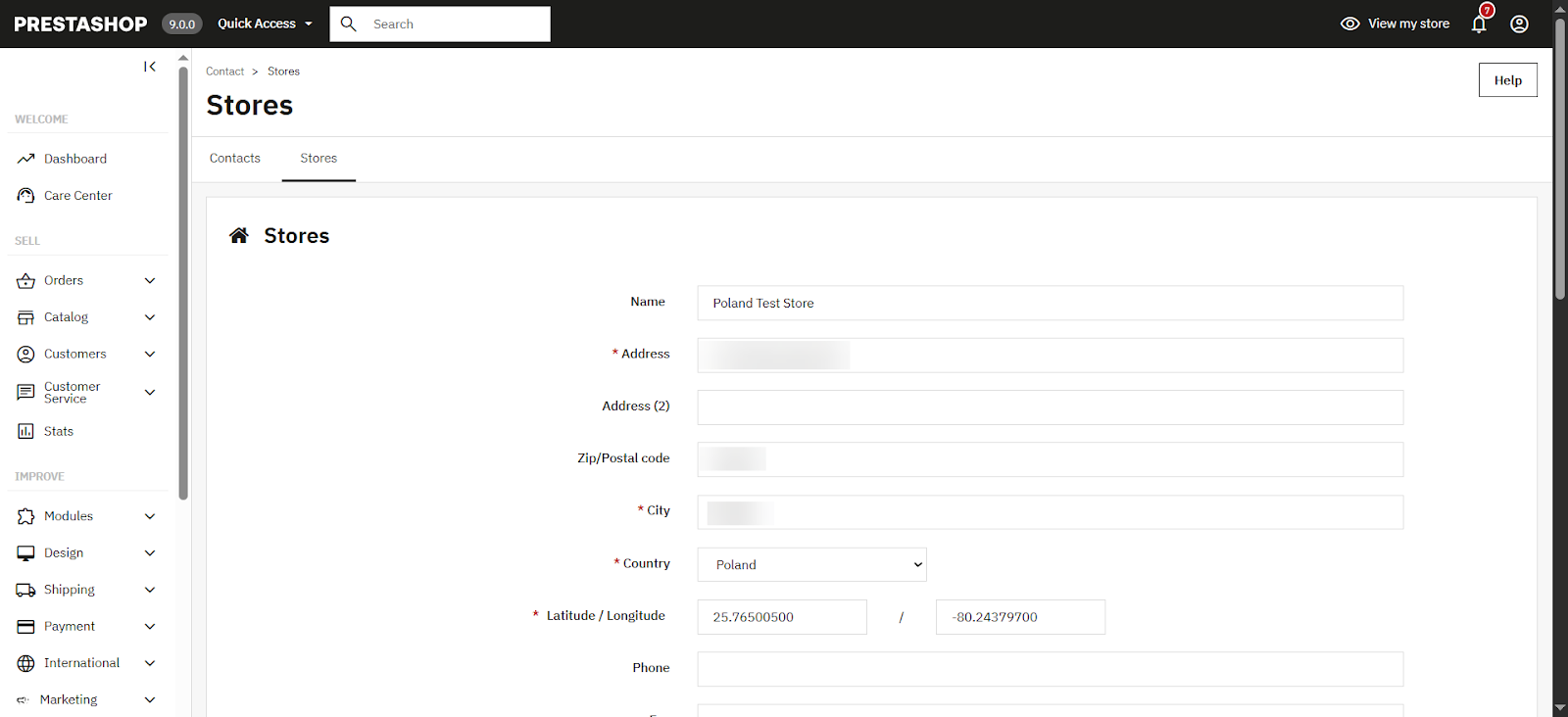
Set up the store information within Prestashop Configure > Shop Parameters > Contact > Stores and Save changes
Note: For Open Banking to work properly, the country and currency must be configured for Poland.
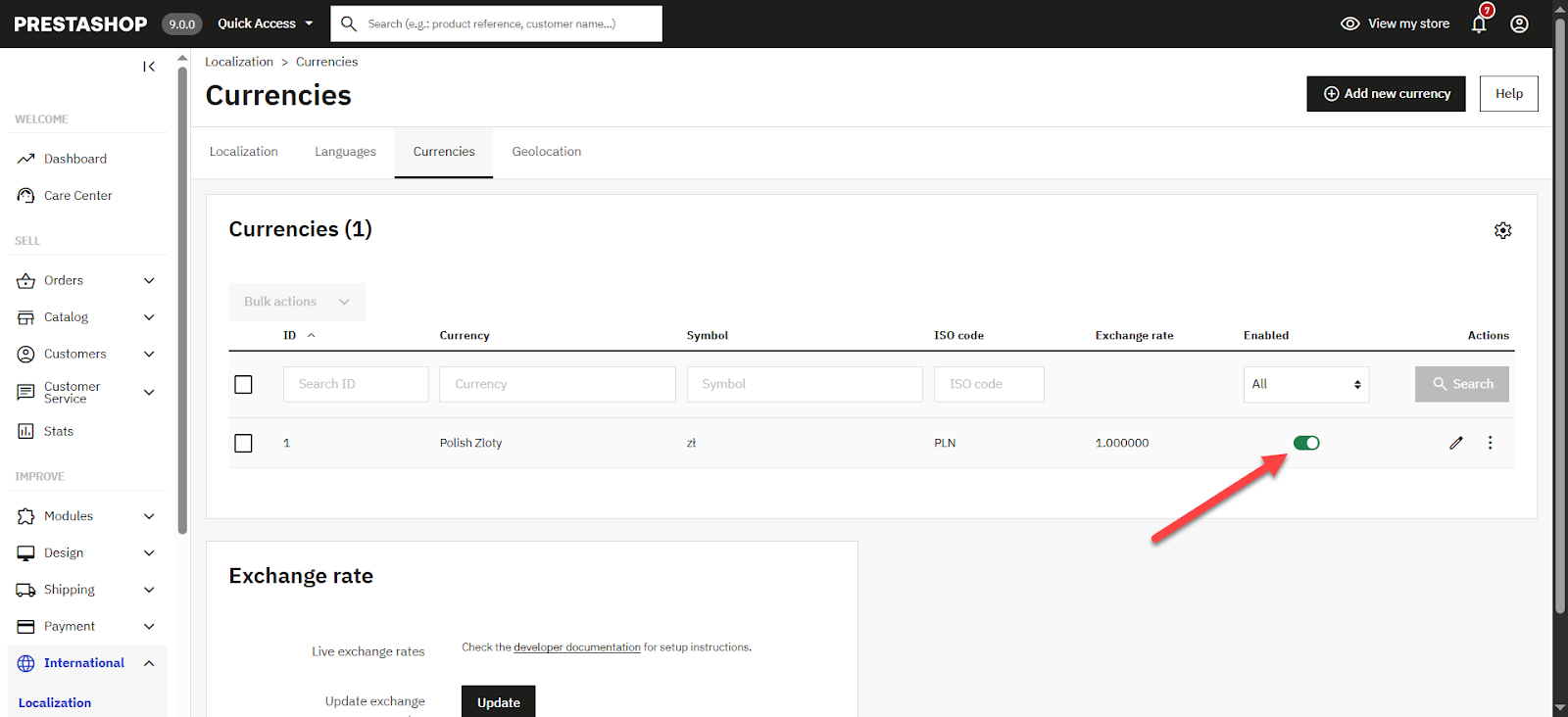
If you do not see the desired currency, you can add a new currency by downloading the localization pack associated with the currency you wish to download. For example, if you wish to add the Polish zlotys to your store, download the "Poland" pack. Once your localization pack has been imported:
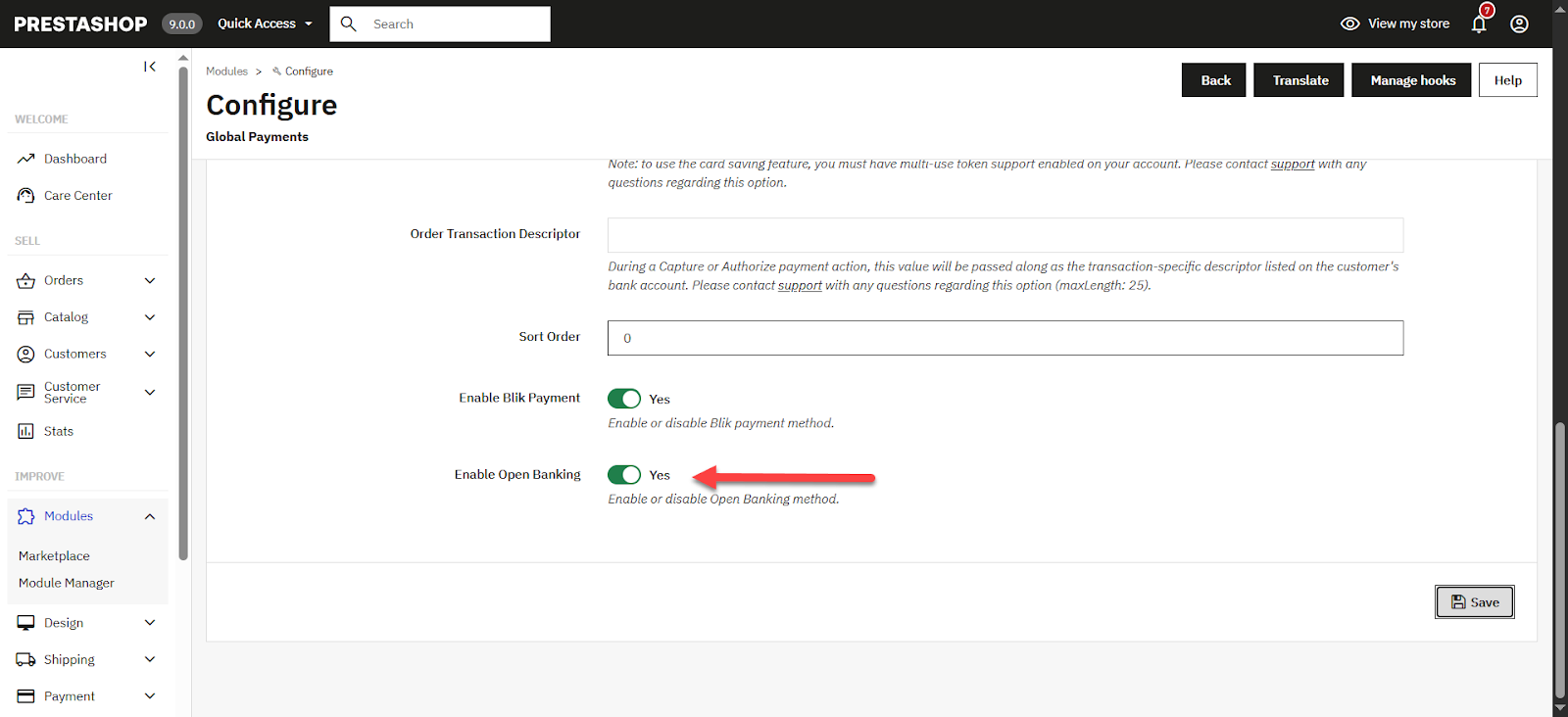
Enable Open Banking in the Payments Settings
This section contains information on payment solutions such as Hosted Fields and Hosted Payment Page, risk management solutions such as 3D Secure, and expanded features such as Card Management and Order Management.
For the Buy Now Pay Later payment methods (Affirm, Clearpay, and Klarna), additional information on checkout flow can be found in the Async Payment Methods section.
For information on our PCI DSS requirement-reducing hosted solution, Hosted Fields (Drop-In UI), see our Hosted Fields - Overview page.
For information on our Hosted Payment Page for Unified Payments REST API integrators, see our Hosted Payment Page - Overview page.
For information on our 3D Secure solutions, see our 3D Secure - Overview page. We provide a Simulator Issuer Access Control Server that allows you to test different 3D Secure scenarios. For more information, see the 3D Secure section of our Test Cards article.
All card data is tokenized using our tokenization service.
Registered customers can save their card information by selecting the “Save for later use” checkbox in the checkout form. The PrestaShop plugin securely stores card data with us and receives a token representation of the card, which is stored in the PrestaShop vault, with no increased PCI compliance requirements.
The customer can choose from the list of their stored cards.
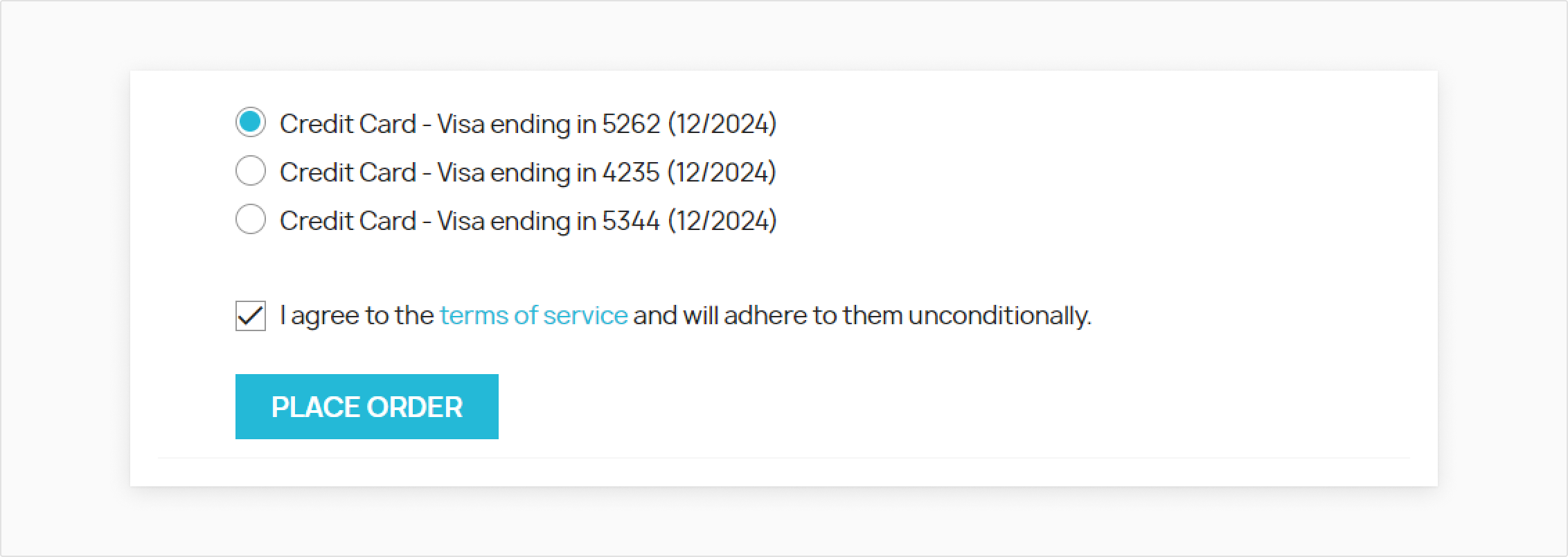
Registered customers can see the list of their stored cards under My Account > My Cards. They can also delete their stored cards from here.
This section applies only to the Buy Now Pay Later payment methods (Affirm, Clearpay, and Klarna) and the Bank Payment payment method. All sections except “Receiving the final payment status” apply to PayPal as well.
Because these payment methods are handled by third-party services and require further processing from these third parties, the checkout flow has some differences compared with the Unified Payments or Digital Wallets ones.
If the Initiate Payment request is successful, the customer will be redirected to the third-party service to pay.
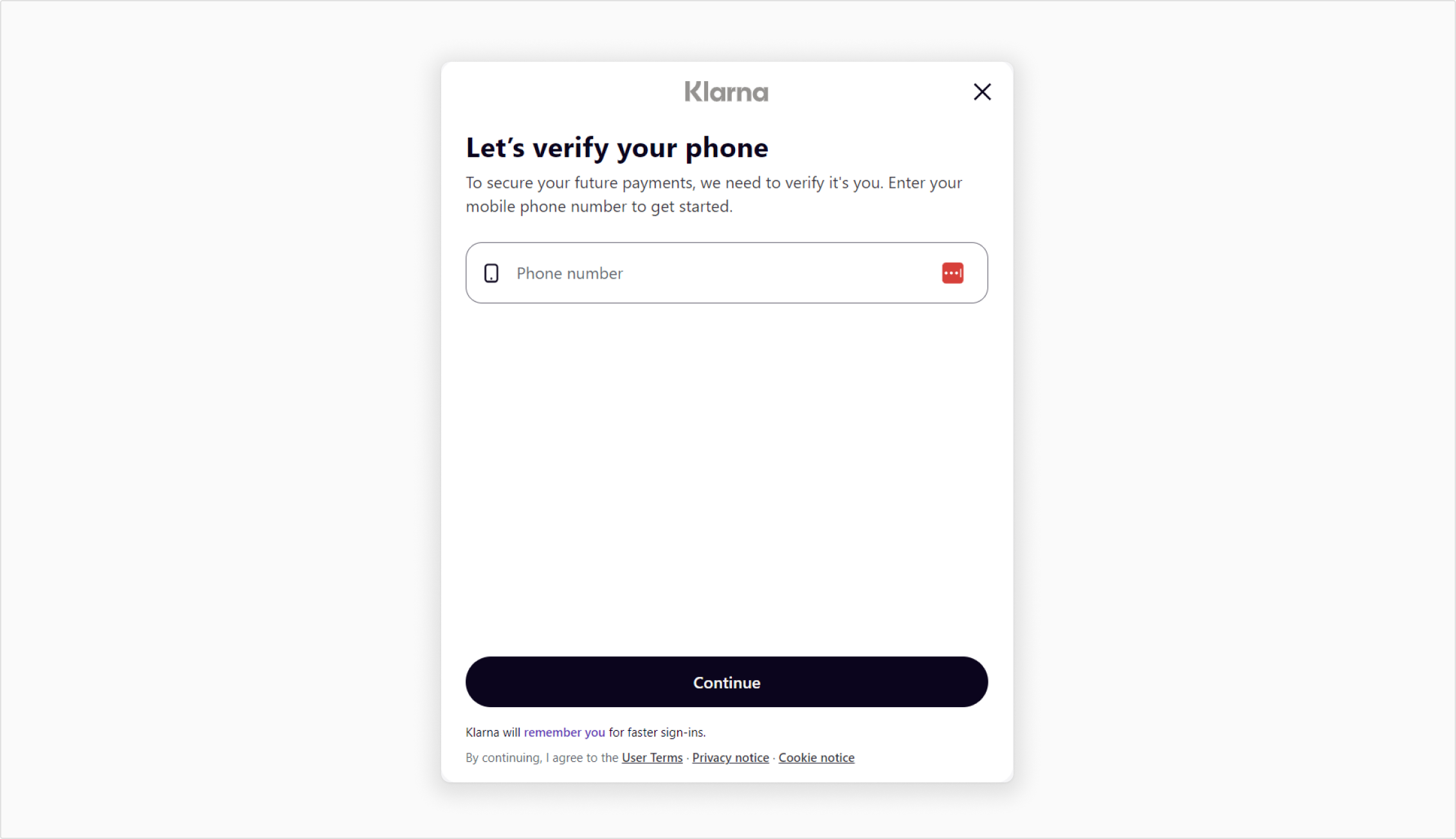
Third-Party Service Example
If the customer decides to cancel the payment using the option provided by the third-party service (for example, clicking the X button on top left of the screen), they will be redirected to the cart page. Also, the order that was previously created will be canceled.
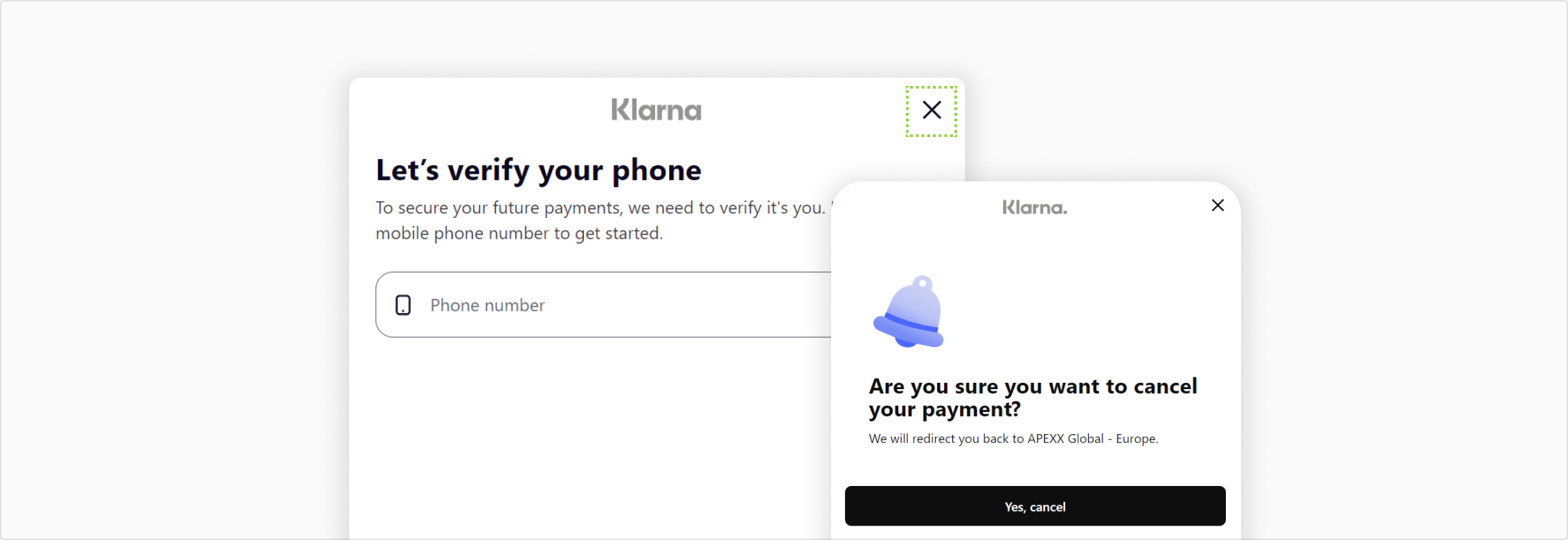
The order canceling will not be processed in your website if the customer decides to leave the page using another option (for example, browser back button, browser X button, or closing the tab); therefore, the order will still have the ‘Waiting for payment’ status in these cases.
If you're using Apache, you’ll need a version greater than 2.4.47 and the following directive added to your config: SetEnv proxy-sendcl 1. Otherwise, the orders within your platform will not be updated as expected.
Merchants who use “Authorize only” at checkout will authorize the funds on the customer’s card, but the transaction won’t be placed in the settlement file until we capture it. The amount of time the funds can remain ring-fenced on the customer's card may vary between different Issuers and Acquirers. Card brands like Visa and Mastercard have their own rules around how long transactions can wait to be captured.
Once an order has been successfully settled with your Acquirer, you can rebate the customer for 0% to 100% of the original order value. To do this, you must create a Partial Refund in PrestaShop.
Navigate to Orders, and select the order you want to rebate.
Click Partial refund. This will send the rebate request to us. You can edit the amount to rebate by editing the adjustment fields provided by PrestaShop.
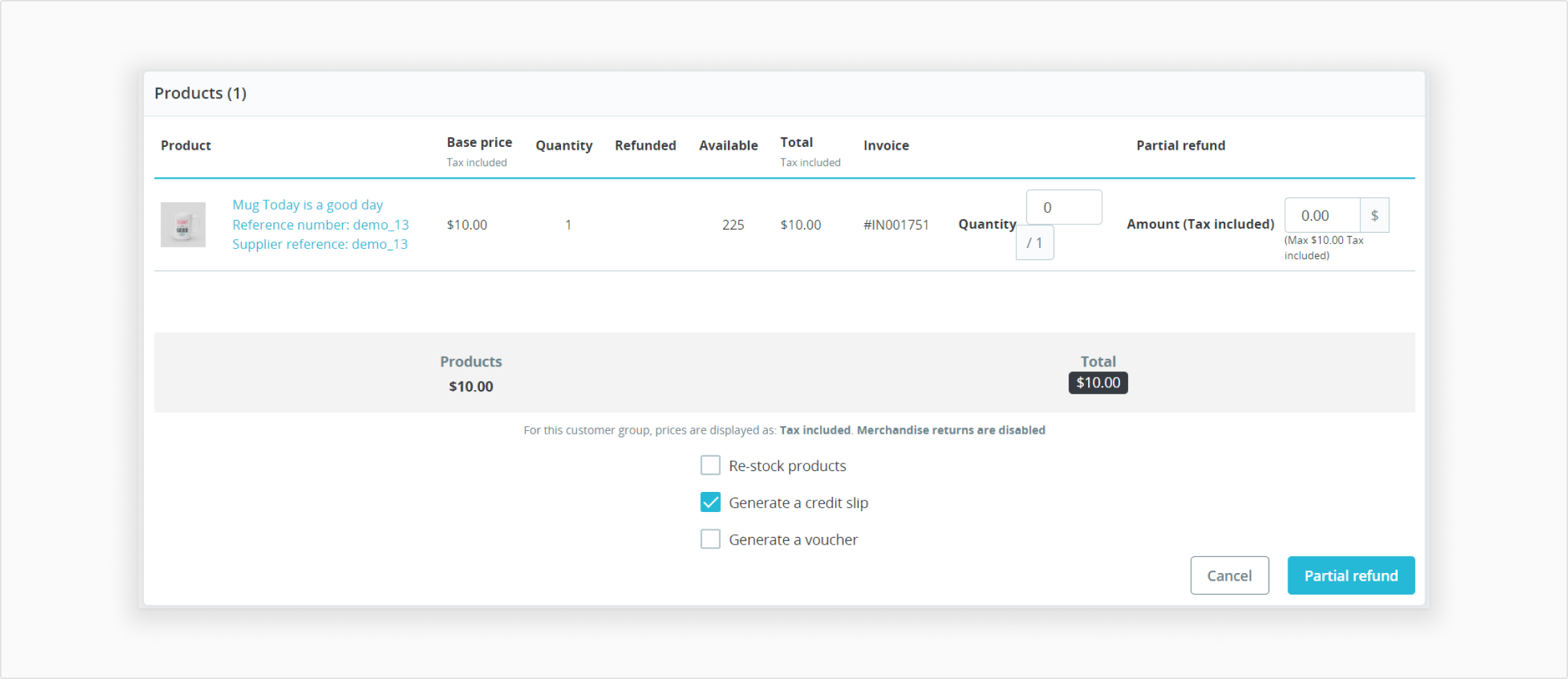
Once complete, you will be returned to the Order page, and a message indicating the outcome of the rebate request will display.
A comment will be also added to the Transaction Management History tab. For example: 18.9USD was reversed or refunded. Transaction ID: TRN_1EVdczFZxLthk87bzWRIjJASMtmhPz_9b5e6cd4f6f3
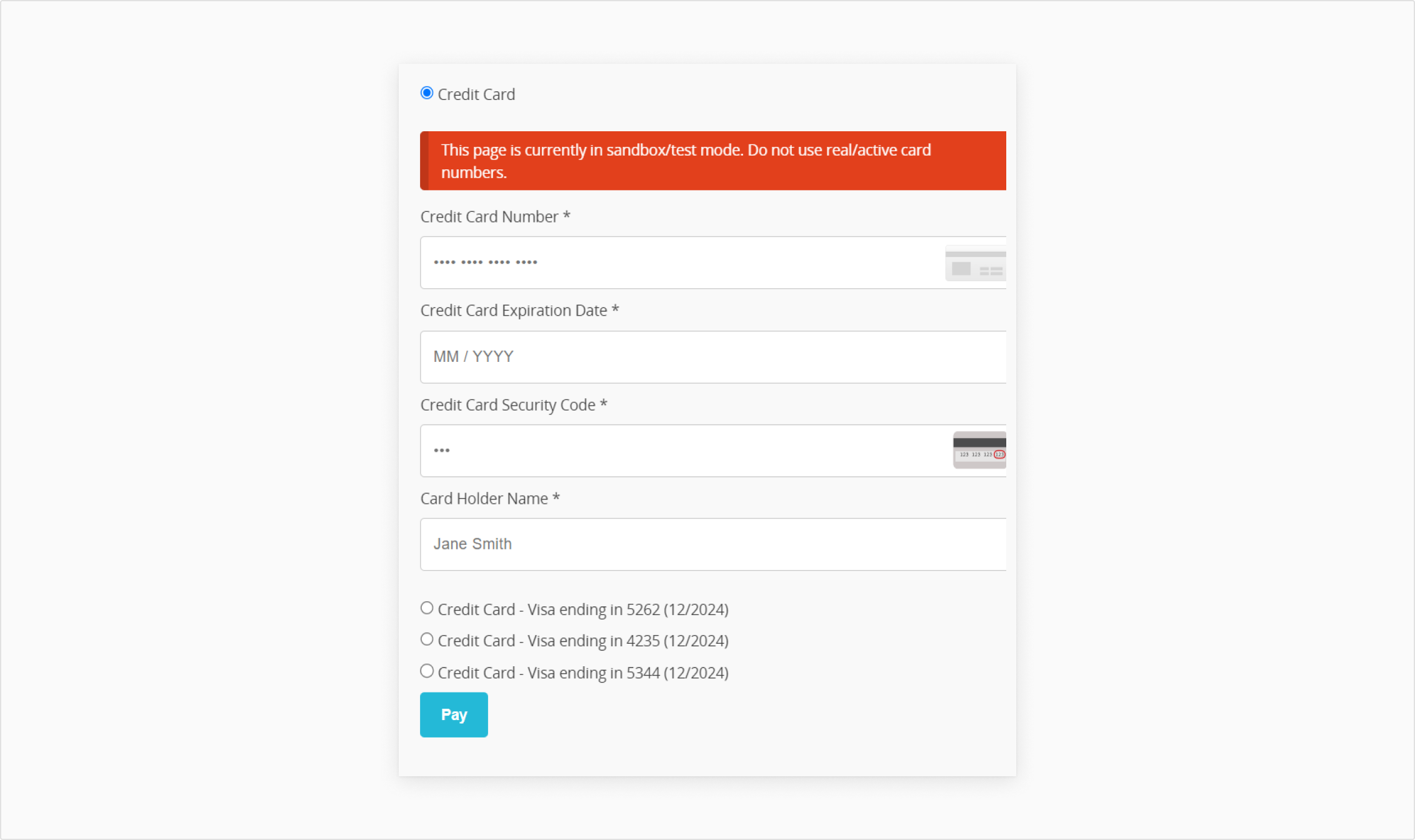
For an order created on the admin side with the status “Waiting for payment,” a new Pay for Order button is displayed.
Clicking this button will open a pop-up window where the admin can pay for the total order value using a card or one of the stored cards of the user that the order was set to.
| Sort order for checkout. |
| BLIK | Enables the BLIK payment method and determines if the payment method is available at time of checkout. |
| Open Banking | Enables the Open Banking payment method and determines if the payment method is available at time of checkout. |