Loading...


Selling online enables merchants to grow and scale their business substantially. However, it can result in goods being shipped that you might not get paid for. In addition to using 3D Secure for all online transactions, you can also mitigate this risk by using our Fraud Management solutions:
Fraud Management offers:
Fraud Management is currently only available for card-not-present transactions in the United Kingdom, United States, Canada, and the European Union.
In this section, we present some “real world” examples that can be enabled through Fraud Management. Keep in mind that this section doesn’t cover all of the use cases.
A mobile operator discovers that fraudsters are using multiple stolen credit card numbers to top up “pay as you go” mobile accounts. However, by the time the mobile operator receives chargebacks from the cardholders, the credit has already been used. Using fraud filters, the mobile operator can now limit the number of different cards that can be used to top up any “pay as you go” mobile. After the limit is reached, any new cards that are attempted are blocked or held for further review by the merchant. Likewise, the mobile operator can limit the number of top-ups allowed per day, per week, and so on.
An online merchant observes an increased occurrence in chargebacks due to alleged fraud claimed by cardholders. The amounts for these transactions were substantially higher than what the merchant typically processes for their business. The merchant has since implemented 3D Secure to help protect against fraudulent online transactions. However, the merchant has opted to also implement two fraud filters as an additional layer of security:
A large multinational merchant wants to implement a set of various fraud rules but needs to ensure that the rules are properly configured and will not result in a substantial number of false positives leading to lost sales. In this scenario, the merchant can activate the rules and turn on Passive mode. When in Passive mode, all live transactions are screened by the established fraud rules. Fraud results will be generated but will not block or hold any of the transactions. This allows the merchant to first monitor the behavior and effectiveness of their fraud rules and to subsequently make any necessary adjustments before enabling them in Active mode to put them into action.
The Fraud Management Fraud Filter enables merchants to automatically hold, block, or pass transactions based on the result of one or more rule results screened during a transaction. You can configure and enable fraud rules on the Ecommerce Portal (RealControl) in the Fraud Management section. Fraud Filter must be set up first before being used via our REST API. For steps and code samples for how to use Fraud Filter, see our Fraud Filter guide.
You can create new Fraud Filter rules from the Rules tab as shown below. From the Data Lists tab, you can manage your data lists, which are used by certain rules (for example, a high-risk card number list or medium-risk IP address list).
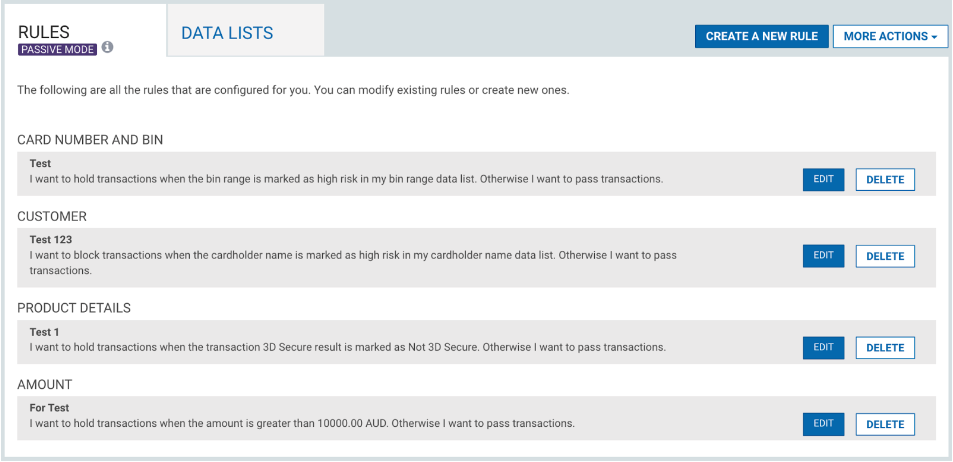
Fraud Filter - Rules Tab
To make it easier to organize your rules, we provide preset categories, as described in the table below.
| Rule Category | Description |
|---|---|
| Card Number and BIN (Bank Identification Number) | Rules relating to the usage frequency of a card number or BIN. You can also create a rule for all high-risk card numbers or BINs. |
| Geographic | Rules relating to location or country. For example, cards from certain countries or if the shipping and billing countries are different. |
| Customer | Rules relating to a customer number or cardholder name. For example, the number of times the customer number is seen with different card numbers. |
| Product Details | Rules relating to product details. For example, for all high-risk product IDs or when the Variable Reference is used with different card numbers. |
| Velocity | Rules based on the number of transactions processed or declined within a set time frame. |
| High Risk Time | Rules based on the timestamp of the transaction, for example, a certain time of day. |
| Amount | Rules based on if the amount is greater than a defined amount. |
| Third Party | Rules based on the results of a third party such as Decision Manager. |
You can set the Fraud Filter mode for individual fraud rules for a given transaction. There is also an option to turn off one or more rules while maintaining the other rules as Active, which can be done using the Passive or Off setting.
Transactions that were held, blocked, or failed by Fraud Filter can be viewed on the Transactions screen in Ecommerce Portal (RealControl). If you want to review a certain held transaction, just search for transactions with a “Held” status. After finding the one you want, you can then view the details on the Fraud tab for the transaction.
Check out the following guides to learn how to integrate Fraud Management into your application or website.