You can easily add PayPal to the Global Payments Hosted Payment Page (HPP) to maximize conversion on your checkout with no integration changes required. PayPal transactions are also available in Ecommerce Portal, allowing for simpler consolidated reporting.
For the HPP, the standard flow for a PayPal transaction works like this:
- The payment is initiated on the HPP, and the customer is redirected to PayPal.
- On the PayPal site, the customer chooses to proceed with the transaction or not.
- Your application or website receives the response of the transaction from the HPP.
HPP example
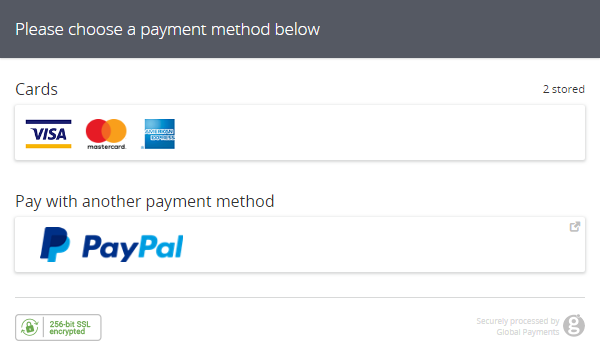
Once the PayPal method is clicked, the customer is redirected to the PayPal website where they will be asked to authenticate. After entering their correct username and password, the customer can proceed in two ways:
- Complete the transaction. In this scenario, the transaction is processed and the customer will be redirected back to the HPP. Your application will receive the response from HPP as normal.
- Cancel the transaction. Your application will receive the response from the HPP as normal. The result code will be 110.
Sample response
The HPP returns the transaction response along with the additional PayPal data.
When using the HPP in an iFrame, you must supply the MERCHANT_RESPONSE_URL field. Otherwise, PayPal might prevent your iFrame (frameburst).
The Timestamp returned in the response will be identical to the one sent in the request POST. This, combined with the Order ID and other transaction variables, can be used to definitively link the received response with the transaction request and order created in your application. You should also check the other transaction variables—for example, the Amount—against what was stored in your application at the time the request POST was sent.
[RESULT=00,
 MESSAGE=SUCCESS,
 ACCOUNT=internet,
 MERCHANT_ID=MerchantId,
 ORDER_ID=20181004103304-5bb5ec6022e76,
 TIMESTAMP=20181004103304,
 AMOUNT=1001,
 MERCHANT_RESPONSE_URL=https://www.example.com/responseUrl,
 HPP_LANG=EN,
 HPP_CUSTOMER_COUNTRY=GB,
 SHA1HASH=3353e31885bf35f593262532c6108fd4f8dc940d,
 PASREF=15386492591866889,
 PAYMENTMETHOD=paypal,
PM_OPTS=<!-- PayPal Response, See Sample Below -->]PayPal full response
The full response from PayPal is also returned in the PM_OPTS field as a JSON string.
{
  "PaymentInfo": {
    "TransactionType": "express-checkout",
    "ExchangeRate": "",
    "PaymentDate": "2018-10-04T10:34:20Z",
    "PendingReason": "none",
    "ProtectionEligibilityType": "ItemNotReceivedEligible,UnauthorizedPaymentEligible",
    "ProtectionEligibility": "Eligible",
    "ReasonCode": "none",
    "TransactionID": "91C28608UF520433N",
    "TaxAmount": {
      "currencyID": "EUR",
      "content": 0
    },
    "ReceiptID": "",
    "PaymentType": "instant",
    "ParentTransactionID": "",
    "SellerDetails": {
      "SecureMerchantAccountID": "A7R5WZAPKVZDL",
      "PayPalAccountID": "test@example.com"
    },
    "GrossAmount": {
      "currencyID": "EUR",
      "content": 10.01
    },
    "PaymentStatus": "Completed",
    "FeeAmount": {
      "currencyID": "EUR",
      "content": 0.69
    }
  }
} {
  "Version": 98
} {
  "Build": "000000"
} {
  "SuccessPageRedirectRequested": false
} {
  "Ack": "Success"
} {
  "CoupledPaymentInfo": ""
} {
  "Token": "EC-6EN97154XA6460319"
} {
  "CorrelationID": "ccdaeed49c829"
} {
  "Timestamp": "2018-10-04T10:34:21Z"
}Explore more functionality to enrich your application.
Global Payments provides a full suite of APIs that allow you to process and manage PayPal transactions, along with simple consolidated reporting of all your payment methods through Ecommerce Portal. The full lifecycle of a PayPal transaction may consist of five or more requests.
For direct API integration, the standard flow for a PayPal transaction works like this:
- Initiate the payment
- Redirect the customer to PayPal
- Receive the response from PayPal while the customer is redirected back to your application or website
Step 1: Initiate the payment
The payment-set request is used to advise PayPal of the details of a new transaction and to retrieve the necessary details required to facilitate authentication. The response will contain a token that your application can use when redirecting your customer to PayPal.
A successful PayPal transaction will return a 00 success code, even though standard non-card transactions usually return a 01 success code.
<?xml version= "1.0" encoding= "UTF-8"?>
<request type="payment-set" timestamp="20180802120019">
  <merchantid>MerchantId</merchantid>
  <account>internet</account>
  <amount currency="EUR">1001</amount>
  <autosettle flag="1"/>
  <orderid>IgGjoyQSRXqRyIvG30S5zQ</orderid>
  <paymentmethod>paypal</paymentmethod>
  <paymentmethoddetails>
    <ReturnURL>https://www.example.com/success</ReturnURL>
    <CancelURL>https://www.example.com/failure</CancelURL>
  </paymentmethoddetails>
  <sha1hash>2d630f0d401ee62c711db6ab37b79f2ad43f201e</sha1hash>
</request>Step 2: Redirect to PayPal
The next step is to redirect the customer to PayPal to facilitate authentication. The token returned in the payment-set response must be included in the URL.
On the PayPal website, after authentication, the customer can proceed in two ways:
- Complete the transaction. In this scenario, the transaction will be processed and the customer will be redirected back to your
ReturnURL. Also returned will be thePayerID, which you must include in the final request. - Cancel the transaction. The customer will be redirected back to your
CancelURL. The result code will be 110.
<!DOCTYPE html>
<html>
   <head>
      <title>Sample PayPal Redirect</title>
      <meta charset="UTF-8">
   </head>
   <body>
      <script>
         window.location = "https://www.sandbox.paypal.com/cgi-bin/webscr?cmd=_express-checkout&token=TOKEN";
         <!-- Production URL https://www.paypal.com/cgi-bin/webscr?cmd=_express-checkout&token=<token> -->
      </script>
   </body>
</html>Step 3: Receive the PayPal response
The response from PayPal for a completed transaction will encode additional transaction data in the URL query string, which you'll need for the next request.
https://<ReturnURL>?pasref=<pasref>&token=<token>&PayerID=<PayerID>
<!-- Sample -->
https://www.example.com/success?pasref=14627849160897986&token=EC-1RR24128VW167394F&PayerID=LPLWNMTBWMFAYStep 4: Execute the transaction
The final step is the payment-do request, which is used to execute a successfully authenticated and authorized transaction. The Order ID, Payments Reference, token, and PayerID from the previous steps must be submitted.
<?xml version="1.0" encoding="UTF-8"?>
<request type="payment-do" timestamp="20180802120019">
  <merchantid>MerchantId</merchantid>
  <account>internet</account>
  <amount currency="EUR">1001</amount>
  <orderid>IgGjoyQSRXqRyIvG30S5zQ</orderid>
  <pasref>14627849160897986</pasref>
  <paymentmethod>paypal</paymentmethod>
  <paymentmethoddetails>
    <Token>EC-8U990772BK865951U</Token>
    <PayerID>RR2X8...GE4YY</PayerID>
  </paymentmethoddetails>
  <sha1hash>1f670bb08e62cb33e42ec69dd1c0e8809a129db7</sha1hash>
</request>Explore more functionality to enrich your application.