We've built the Hosted Payment Page (HPP) so that you can easily customize it to maintain the design of your website or application. Use our templates to provide different styles for desktop, tablet, and mobile devices. Templates can also be applied at a sub-account level, allowing you to easily choose which one you want to display to the customer.
The HPP will automatically render the correct template depending on what device your customer is using. When sending us a template, be sure to match the criteria in the guidelines below. If you don't provide a template, the HPP will display a standard device-optimized version.
How to use our templates
Templates allow you to dramatically change the HPP display through simple changes in the CSS. Whether you're using the HPP to take payment for an online store on desktop/mobile or displaying it in-app, templates provide a seamless visual transition throughout the user journey and overall experience.
Let's take a simple example. This is the standard desktop HPP with no customization.
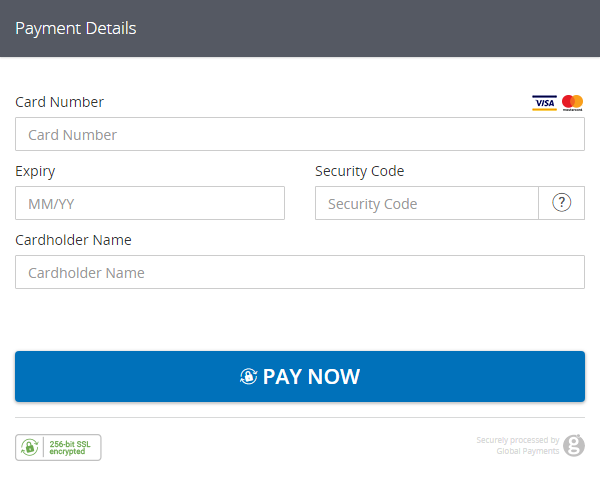
In the samples below, you'll see the HPP with some simple Cascading Style Sheet (CSS) changes applied. Note how we retained only the core elements of the payment form, plus the security and trust information. We've reduced the width of each input field and brought all the form elements closer together. We can easily load this form into an iFrame, for example, to embed it into a checkout page.
Sample templates
We've created three templates to get you started on customizing the HPP. Simply download the most appropriate template to your project, modify the CSS to your needs, and then send it to your account manager to test it.
Sample template #1
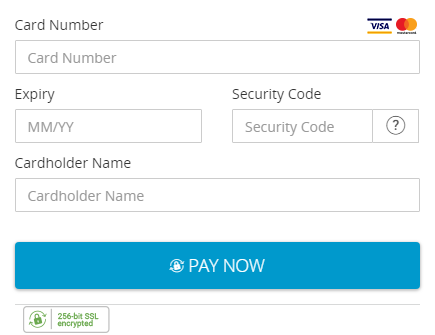
Sample template #2
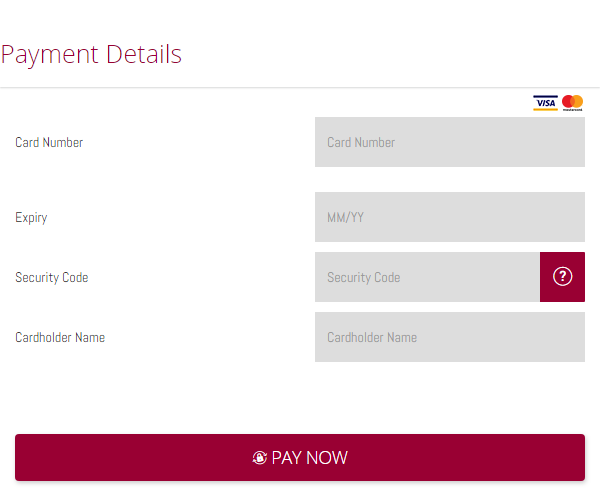
Sample template #3
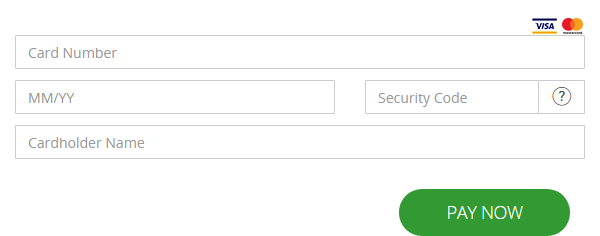
Example CSS
/*----------------- MAIN CONTAINER -----------------*/
.portfolio-realex {
    background: white;
    max-width: 435px;
}
/*----------------- HEADER -----------------*/
/* This hides the entire header - that includes the breadcrumb and the title */
#rxp-header {
    display: none;
}
/* this is a div that contains the loading animation */
#info-box-footer {
    display: none;
}
/*----------------- FORM -----------------*/
/* main wrapper around elements */
.panel {
    border-color: white;
    box-shadow: 0 1px 1px white;
}
/* this is the same div as "panel" but the ID is specific to the payment form */
#another-card-section {
    background: white;
}
/* wrapper around the payment form */
#rpx-another-card {
    background: white;
}
/*----------------- CARD MANAGEMENT -----------------*/
/* Heading "pay with a saved card" and "pay with another card*/
#hpp-accordion .panel-heading {
    background-color: white;
}
#panelPayWithSavedCard {
    width: 94%;
    margin-left: 3%;
}
/*----------------- BUTTON -----------------*/
/* this is the box around the button */
#main-btn-box {
    width: 94%;
    margin-left: 3%;
}
/* this is the actual button */
#main-btn-box .btn-hpp-a {
    font-size: 1.25em;
    background-color: #0099cc;
    font-weight: 100;
}
/*----------------- FOOTER -----------------*/
/* this is for the entire footer */
#rxp-footer {
    background-color: white;
    padding: 0 0 0 8px;
    margin-left: 2%;
}
/* This is to hide  logo */
#rxp-footer .text-right {
    display: none;
}
Desktop and tablet templates
Guidelines
The basic structure of a template is shown below. Note the HTML tag that indicates where the payment form should be placed; this tag must be present in your template.
Your template can be set up to resemble the rest of your customer journey. A typical template may consist of:
- A header image
- A plaintext message for the customer
- The required
<hpp:body />tag
Simply using the general color scheme of your application or store can be highly effective.
Below are the full requirements for the template page:
- The template must be written in valid, semantic HTML. You can validate your HTML at the following URL: http://validator.w3.org/
Note: You should validate your HTML before inserting the<hpp:body />into your form as this tag will cause the HTML to fail validation. - Template pages must contain the payment form tag
<hpp:body />. - All images or CSS used in the template must be referred to locally on our server; no absolute URLs to external images or CSS. You'll need to include the image files along with the template page.
- All resources used by the desktop template (CSS, images) should be placed in a folder called desktopresources. The subfolder structure within this folder is your choice.
- No scripting of any kind in the template for security reasons. It should contain only basic HTML.
- The filename must be desktop.html. This file and accompanying folders should be compressed before sending to Global Payments.
- Only HTML, CSS, JPG, PNG, and GIF files are permitted.
- Maximum size of an individual file is 262 KB.
Format
<!DOCTYPE HTML PUBLIC "-//W3C//DTD HTML 4.01 Transitional//EN">
<html>

    <head>
        <meta http-equiv="Content-Type" content="text/html; charset=utf-8">
        <title>My Title</title>
        <!-- Reference to your css file below -->
        <link rel="stylesheet" type="text/css" href="resources/css/styles.css">
    </head>

    <body>
        <!-- The <hpp:body /> tag below indicates where the payment form will be placed -->
        <div>
            <hpp:body>
        </div>
    </body>

</html>
Mobile templates
Guidelines
The HPP can detect and render a mobile-aware template based on the customer's device. The same rules apply for mobile-aware templates in terms of permitted file types and external links. There is also an additional tag to be placed in the <head> of your HTML page for mobile-aware templates to ensure that the payment form renders correctly.
This tag will ensure that the payment form will display to the correct scale of the device your customer is using:
<meta name="viewport" content="width=device-width, initial-scale=1">
The requirements for mobile-aware templates are as follows:
- Mobile-aware templates should include the tag:
<meta name=”viewport” content=”width=device-width, initial-scale=1”>within the<head>of the template. - The template must be written in valid, semantic HTML. You can validate your HTML at the following URL: http://validator.w3.org/
Note: You should validate your HTML before inserting the<hpp:body />into your form as this tag will cause the HTML to fail validation. - Template pages must contain the payment form tag
<hpp:body />. - All images or CSS used in the template must be referred locally on our server; no absolute URLs to external images or CSS. You'll need to include the image files along with the template page.
- All resources used by the mobile template (CSS, images) should be placed in a folder called mobileresources. The subfolder structure within this folder is your choice.
- No scripting of any kind in the template for security reasons. It should contain only basic HTML.
- The filename must be mobile.html. This file and accompanying folders should be compressed before sending to Global Payments.
- Only HTML, CSS, JPG, PNG and GIF files are permitted.
- The maximum size of an individual file is 262 KB.
Format
<!DOCTYPE HTML PUBLIC "-//W3C//DTD HTML 4.01 Transitional//EN">
<html>

    <head>
        <meta http-equiv="Content-Type" content="text/html; charset=utf-8">
        <meta name="viewport" content="width=device-width,initial-scale=1">
        <title>Your title</title>
        <!-- Reference to your css file below -->
        <link rel="stylesheet" type="text/css" href="resources/css/styles.css">
    </head>

    <body>
        <!-- The <hpp:body /> tag below indicates where the payment form will be placed -->
        <div>
            <hpp:body>
        </div>
    </body>

</html>
Explore more functionality to enrich your application.
iFrame Optimization
Digital Wallets
Payment Methods