Loading...


3D Secure is the authentication protocol used by card schemes, such as Visa and Mastercard, to enable merchants to gain protection from fraud in a Card Not Present (CNP) environment and to comply with European Strong Customer Authentication (SCA) regulations set in Payment Services Directive 2 (PSD2).
The goal of authenticating customers using 3D Secure is for the merchant to achieve a liability shift so they are protected if the transaction turns out to be fraud.
We provide three ways to integrate:
Our JavaScript Library and server-side SDKs (Java, .NET, PHP) work in tandem to carry out the various 3D Secure 2 steps. On the server side, this includes checking if the card supports the protocol, sending the authentication request, and communicating with the client side in either a frictionless or challenge flow.
On the client side, the JavaScript Library handles the opening of the Method URL (device profiling) if supported, gathers the necessary device data to send in the authentication request, and displays the ACS in the event of a challenge flow. The ACS can be displayed in a Lightbox iFrame created by the JavaScript Library, or you can target your own iFrame.
In this guide, we've broken down each stage of the authentication step by step. To make it easier to understand we've also broken up the code samples for the server-side endpoints and the client-side. For the complete samples, or if you want to skip ahead to the code, see the Additional resources section below.
Before testing or implementing 3D Secure 2, you first need to set up two endpoint URLs in your application or website so that data and event notifications can be received from the Issuer’s Access Control Server (ACS). Each endpoint must be configured to accept an HTTP POST with Base64 encoded values.
The Issuer’s ACS uses notifications in two important ways during authentication:
The server-side code samples in this step are not specific to our SDK. We’ve provided simple examples of how to handle the data sent by the ACS. They should not be used as Production-ready code.
If the Issuer’s ACS supports the Method URL step (device profiling) and it completes successfully, the ACS sends a POST to the Method URL notification endpoint containing the Global Payments Server Transaction ID for the authentication.
On the server side, we consume the POST sent by the Issuer’s ACS, decode it, and prepare the string to be returned to the client side.
On the client side, we notify the JavaScript Library that the Method URL step is complete. We may also choose to pass back the available data, in this case the Global Payments Server Transaction ID.
<script src="globalpayments-3dsecure.js"></script>
<script>
GlobalPayments.ThreeDSecure.handleMethodNotification("threeDSServerTransID");
</script>In the event of a challenge, the Issuer's ACS will POST the challenge result (CRes) to the Challenge Notification endpoint. The challenge result contains key information that we can use to determine the next action in the authentication process.
In our example, we’re using a simple custom class ChallengeUrlResponse, which has string variables for ThreeDSServerTransID, AcsTransID, MessageType, MessageVersion, and TransStatus.
On the client side, we notify the JavaScript Library that the Challenge URL step is complete. As with the Method URL step, we may choose to send back additional data such as Global Payments Server Transaction ID and the Transaction Status, which indicates whether the transaction was successfully authenticated or not.
<script src="globalpayments-3dsecure.js"></script>
<script>
GlobalPayments.ThreeDSecure.handleChallengeNotification('"threeDSServerTransID":"threeDSServerTransID","transStatus":"transStatus"');
</script>The authentication process begins with determining if the card is enrolled in 3D Secure 2 or not. If the card is enrolled, the exact version will be returned (2.x.x), along with the necessary Method URL to facilitate the gathering of device data by the Issuer’s ACS (if supported). For a guide on how to send this request when using our Card Storage solution, see the API Reference for Card Storage. If the card is not enrolled, the only value returned will be enrolled = false.
To initiate this, we use the Check Version method of the JavaScript Library. In our example, we also call a Check Version endpoint, which contains our server-side code. To check if the card is enrolled, we only need the full number (PAN). Depending on your application or website’s payment flow, you may also choose to send all the card data (expiration date, security code, and cardholder name) to the server side at this point.
The following example assumes you have an input field with the identifier card-number on the page.
<script src="globalpayments-3dsecure.js"></script>
<script>
const {
   checkVersion,
   getBrowserData,
   initiateAuthentication,
} = GlobalPayments.ThreeDSecure;

// assign the button that will trigger authentication
document.addEventListener('DOMContentLoaded', () => {
   const checkVersionButton = document.getElementById('startButton');
   if (!checkVersionButton) {
      return;
   }

   checkVersionButton.addEventListener('click', async (e) => {
      e.preventDefault();
      // check if the card is enrolled for 3D Secure 2

      try {
         versionCheckData = await checkVersion('/ThreeDSecure2/CheckVersion', {
            card: {
               number: document.getElementById('card-number').value
            },
         });

         if (versionCheckData.error) {
            // TODO: handle the scenario where the card is not enrolled for 3D Secure 2
            return;
         }
      }

      catch (e) {
         // TODO: add your error handling here
      }
// continued in next stepOn the server side, we need to consume the data sent by the JavaScript Library. In our example, we add the card number to our card object. We also set up our gateway configuration including the Merchant ID (Client ID) and Account ID, along with the URLs we configured in Step 1. Also required is a merchant URL with customer care information. We also set the version of 3D Secure we want to use.
If the Check Version returns true for 3D Secure 2, we return the enrollment status to the client side, along with the Global Payments Server Transaction ID. In addition, if supported by the ACS, we pass back the Method URL and Encoded Method Data required by the JavaScript Library to facilitate the device-profiling step.
If the Issuer's ACS supports the Method URL step (device profiling), we need to open a hidden iFrame targeting the URL returned in the Check Version response. The JavaScript Library automatically performs this step, and the device profiling should complete in seconds. Once it does, the Issuer's ACS sends a form POST and initiates a redirect inside the hidden iFrame to the endpoint we set up in Step 1. As soon as the JavaScript Library receives the response from the Method Notification endpoint, it closes the hidden iFrame and proceeds to the next step.
The JavaScript Library expects a JSON string from the Check Version endpoint. An example is provided in the code sample.
Now that we know if the card is enrolled for 3D Secure 2 and (conditionally) the Method URL process is complete, we can send the authentication request to the Issuer. For this, we use the Initiate Authentication method of the JavaScript Library. In our example, we also call an Initiate Authentication endpoint on the server side. For a guide on how to send this request when using our Card Storage solution, see the API Reference for Card Storage.
Some devices may return a color depth that is not in the list of accepted values. In this scenario, the EMVCo recommendation is to submit the closest lower value. For example, if the color depth returned by the browser is 30, submit 24 as this is the closest lower value.
3D Secure 2 provides a framework for merchants to benefit from SCA exemptions under certain low-risk conditions. Exemptions may be applied by the Issuer based on the transaction details or may be specifically requested by the merchant, with their Acquirer’s permission. In the authentication message, you can request an exemption by including it in the Challenge Request Indicator field.
When a merchant requests an exemption (whether via authentication or directly in authorization) and it's successfully applied, they will no longer be able to avail of a liability shift in the event of a fraud-related chargeback.
For Mastercard exemption requests, see our Message Extension guide.
This time, we send the full card data to the server side, including expiration date, security code, and cardholder name. In addition, we must also pass whether the Method URL completed (or took place at all). In the event of a challenge, we can also set how we want the Issuer's ACS to be displayed and what size window the content of the challenge should be formatted for.
Optionally, we can also send any relevant data from the client side, such as the customer (payer) billing and shipping details as well as any required order information. In our sample, all data is obtained on the server side, such as from the database or available variables.
The JavaScript Library expects a JSON string from the Initiate Authentication endpoint. An example is provided in the code sample.
// continued from previous step
      try {
         authenticationData = await initiateAuthentication('/ThreeDSecure2/InitiateAuthentication', {
            serverTransactionId: checkVersionData.serverTransactionId,
            methodUrlComplete: true,
            card: {
               expiryMonth: document.getElementById('expiry-date-mm').value,
               expiryYear: document.getElementById('expiry-date-yy').value,
               securityCode: document.getElementById('cvn').value,
               cardHolderName: document.getElementById('card-holder-name').value
            },
            challengeWindow: {
               windowSize: ChallengeWindowSize.FullScreen,
               displayMode: 'lightbox',
            }
            // order: {}, // optional if data available on client-side
            // payer: {}, // optional if data available on client-side
         });

         // frictionless authentication success and authorization success
         if (authenticationData.result == "AUTHORIZATION_SUCCESS") {
            // TODO: proceed to success page or display success information
         }

         // frictionless authentication success and authorization failure
         else if (authenticationData.result == "AUTHORIZATION_FAILURE") {
            // TODO: proceed to failure page or display decline information
         }

         // frictionless authentication failure
         else if (authenticationData.result == "AUTHENTICATION_FAILURE") {
            // TODO: proceed to failure page or display failed authentication information
         }
// continued in next stepThe authentication request also requires browser data, which the JavaScript Library collects automatically and passes in the request to the server side. We must also obtain the browser IP address and Accept Header using server-side methods (see below). Finally, we add all the mandatory and recommended data to the request, including the Server Transaction ID returned in the Check Version response, and execute the Initiate Authentication method.
In our example, we add only mandatory and recommended fields to the request. For the full list of optional fields, see the API Reference for 3D Secure 2.
At this point, the Issuer analyzes the transaction based on the data your application provided as well as historical “normal” customer behavior and transaction analysis. The more optional fields you send and data you supply, the more likely the authentication for the transaction will be frictionless.
If further authentication is not needed to decide whether the transaction should proceed or not, a challenge is not mandated (frictionless flow). If the Issuer decides that further authentication is needed before the transaction can proceed, it will mandate a challenge (challenge flow).
In a frictionless flow, the Issuer determines that either no challenge is required to authenticate the transaction or that the transaction should not proceed any further because it’s high risk or fraud is suspected. For European merchants and transactions in scope of PSD2, the Issuer also determines if a valid exemption can be applied.
Depending on the outcome and the relevant ECI value, your application can now proceed to Authorization.
In our sample below, we proceed straight to authorization and return the outcome to the client side. Hence, the Initiate Authentication method of the JavaScript Library ultimately receives the authorization response, the transaction is complete, and all that remains is to inform the customer of the outcome.
In the event of the ECI value indicating no liability shift away from the merchant, we’re returning an authentication failed message to the client side. In our client-side example above (Initiate Authentication), we included logic to handle each potential outcome:
You can tailor this flow to your application as needed. For example, you may choose to simply return the frictionless authentication outcome to the JavaScript Library and proceed to authorization from a different endpoint initiated by the client side. The JavaScript Library and SDK are completely flexible in this regard.
In a challenge flow, the Issuer determines that further authentication is required for the transaction to proceed. This may be due to various reasons, including a high value transaction, unusual payment behavior for this particular customer (time of day, type of merchant and so on), mismatching data, or not enough data was submitted for them to make a determination.
In our example, we return the necessary variables to the client side for the JavaScript Library to display the challenge to the customer. This includes the Issuer's ACS URL and the Encoded Challenge Request (CReq). The challenge request is made up of various transaction variables, including the identifiers for the authentication (Server Transaction ID, ACS Transaction ID, and the Challenge Window Size).
To facilitate authentication, the JavaScript Library opens the Issuer's ACS URL in an iFrame while sending the Challenge Request to it. The content of the iFrame is formatted per the Challenge Window Size set in the library (WINDOWED_600X400 is the default). The maximum amount of time the iFrame should remain open to display the challenge in 600 seconds (set by the Issuer's ACS).
The type of challenge displayed to the customer is determined by the Issuer's ACS and aligns with at least two elements of Strong Customer Authentication:
In the Sandbox environment, we provide an Issuer ACS Simulator that allows you to test different challenge outcomes.
Once the challenge loads, after 10 seconds, the simulator automatically completes the authentication and generates an Authentication Successful response (transStatus = “Y”). This is intended to mimic a scenario where a customer has received a notification on their phone to authenticate using their banking app.
Alternatively, clicking the Cancel button generates an Authentication Failed response (transStatus = “N”). In either scenario, the response is sent in the Challenge Response message (CRes) to the Challenge Notification endpoint.
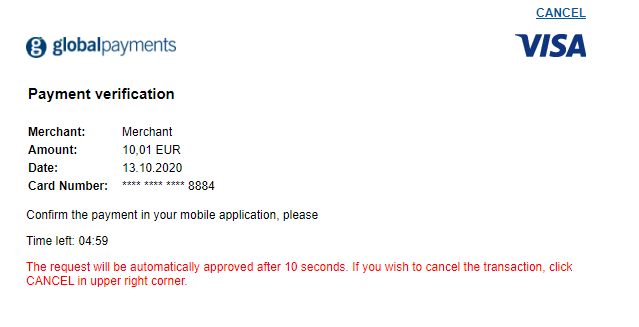
When the challenge is completed and the JavaScript Library receives the response from the Challenge Notification endpoint, the iFrame closes and we proceed to the next step. As outlined previously, our Challenge Notification endpoint passes back the Transaction Status (transStatus) to the client side, notifying us if the authentication was successful or not, along with the Server Transaction ID.
On the client side, if the challenge was completed successfully, we proceed to the next step by submitting our form to the Authorization endpoint after appending the Server Transaction ID to it. For challenge scenarios, we need to execute one more request before sending the authorization request.
// continued from previous step
         // challenge success
         else if (authenticationData.challenge.response.data.transStatus == "Y") {
            var serverTransactionId = authenticationData.challenge.response.data.threeDSServerTransID;

            var form = document.getElementById("myForm");
            form.setAttribute("action", "/ThreeDSecure2/Authorization");

            var formServerTransId = document.createElement("input");
            formServerTransId.setAttribute("type", "hidden");
            formServerTransId.setAttribute("name", "serverTransId");
            formServerTransId.setAttribute("value", serverTransactionId);
            form.appendChild(formServerTransId);
            form.submit();
         }

         // challenge failure
         else {
            // TODO: proceed to failure page or display failed authentication information
            return false;
         }
      }

      catch (e) {
         // TODO: add your error handling here
      }
   });
});
</script>At this point, we know the customer has successfully completed the challenge. However, unlike in a frictionless scenario, our application doesn’t have all the data we need to proceed to authorization.
When the customer completes the challenge, the Issuer's ACS also sends the outcome to our 3D Secure solution, with the full authentication data. The Get Authentication Data method in the SDK allows us to retrieve the necessary data for authorization, including:
If the customer canceled during the challenge or the authentication did not proceed for another reason, the summary endpoint will include this information. You can then update your application or website accordingly.
In our example, we only need to submit the Server Transaction ID.
If you're processing the payment with us, now that the 3D Secure process is complete, and depending on the ECI value returned, we can proceed to authorization while including the authentication data.
Like we did in a frictionless scenario, here we check the ECI value to ensure it affords the merchant a liability shift. And if it does, we proceed to authorization. At this point, the transaction is processed as normal and may be successful or declined based on standard criteria: sufficient funds, correct security code entered, and so forth.
<script src="globalpayments-3dsecure.js"></script>
<script>
const {
   checkVersion,
   getBrowserData,
   initiateAuthentication,
} = GlobalPayments.ThreeDSecure;

// assign the button that will trigger authentication
document.addEventListener('DOMContentLoaded', () => {
   const checkVersionButton = document.getElementById('startButton');
   if (!checkVersionButton) {
      return;
   }

   checkVersionButton.addEventListener('click', async (e) => {
      e.preventDefault();
      // check if the card is enrolled for 3D Secure 2

      try {
         versionCheckData = await checkVersion('/ThreeDSecure2/CheckVersion', {
            card: {
               number: document.getElementById('card-number').value
            },
         });

         if (versionCheckData.error) {
            // TODO: handle the scenario where the card is not enrolled for 3D Secure 2
            return;
         }
      }

      catch (e) {
         // TODO: add your error handling here
      }

      try {
         authenticationData = await initiateAuthentication('/ThreeDSecure2/InitiateAuthentication', {
            serverTransactionId: checkVersionData.serverTransactionId,
            methodUrlComplete: true,
            card: {
               expiryMonth: document.getElementById('expiry-date-mm').value,
               expiryYear: document.getElementById('expiry-date-yy').value,
               securityCode: document.getElementById('cvn').value,
               cardHolderName: document.getElementById('card-holder-name').value
            },
            challengeWindow: {
               windowSize: ChallengeWindowSize.FullScreen,
               displayMode: 'lightbox',
            }
            // order: {}, // optional if data available on client-side
            // payer: {}, // optional if data available on client-side
         });

         // frictionless authentication success and authorization success
         if (authenticationData.result == "AUTHORIZATION_SUCCESS") {
            // TODO: proceed to success page or display success information
         }

         // frictionless authentication success and authorization failure
         else if (authenticationData.result == "AUTHORIZATION_FAILURE") {
            // TODO: proceed to failure page or display decline information
         }

         // frictionless authentication failure
         else if (authenticationData.result == "AUTHENTICATION_FAILURE") {
            // TODO: proceed to failure page or display failed authentication information
         }

         // challenge success
         else if (authenticationData.challenge.response.data.transStatus == "Y") {
            var serverTransactionId = authenticationData.challenge.response.data.threeDSServerTransID;

            var form = document.getElementById("myForm");
            form.setAttribute("action", "/ThreeDSecure2/Authorization");

            var formServerTransId = document.createElement("input");
            formServerTransId.setAttribute("type", "hidden");
            formServerTransId.setAttribute("name", "serverTransId");
            formServerTransId.setAttribute("value", serverTransactionId);
            form.appendChild(formServerTransId);
            form.submit();
         }

         // challenge failure
         else {
            // TODO: proceed to failure page or display failed authentication information
            return false;
         }
      }

      catch (e) {
         // TODO: add your error handling here
      }
   });
});
</script>