Loading...


Existing customers: Get your sandbox and production credentials for Heartland/Portico integration.
Click the button below to download this plugin and view any related documentation available.
Get the pluginOur PrestaShop requires credentials to our Payments gateway. You can get your Test credentials by registering with our developer portal. Once registration is complete, you can find the required Public and Secret Keys in your account.
To configure this plugin, follow these steps.
The Payments gateway offers payment through credit and debit cards. The Payments Settings tab allows you to enter your overall account credentials.
The following table describes the fields that appear on the Payments Settings tab for PrestaShop.
| Field | Description |
|---|---|
| Enable | Determines if the payment method is available at your PrestaShop store’s checkout. |
| Title | Description of the payment method displayed to the customer at checkout, e.g.,"Credit Card." |
| Live Mode | Allows you to switch between the Live and Sandbox version of your account with us. |
| Sandbox/Live App ID | The App ID and App Key are used to obtain a bearer access token to execute API actions. For more information, see the Sandbox credentials section. |
| Sandbox/Live App Key | See Sandbox/Live App ID |
| Credentials Check | Determines if your credentials are valid. Note: The payment methods will not be displayed at checkout if the credentials are not correct. |
| Enable Logging | Allows logging of all requests to and from the gateway. Can also log private data. Should only be enabled in a development or stage environment. The requests will be logged in the var/logs folder. The structure for the name of the log file is as follows: log{current_date}.txt_ |
| Contact URL | A link to an About or Contact page on your website with customer care information (max length: 50). This field is mandatory. |
| Enable 3D Secure | Enables the 3D Secure feature. Learn more about 3D Secure. |
| Payment Action | The Sale transaction can be flagged for automatic capture (Authorize + Capture) or flagged as requiring a separate capture action later (Authorize only). |
| Allow Card Saving | Determines whether customer's cards can be saved to our Card Storage solution following a successful transaction. If set to Yes, a checkbox displays on the Hosted Fields form that gives the customer the choice to store their card. If set to No, no checkbox displays, and the card is not stored. |
| Order Transaction Descriptor | During a Capture or Authorize payment action, this value is passed along as the transaction-specific descriptor listed on the customer's bank account. |
| Sort Order | Sort order for checkout. |
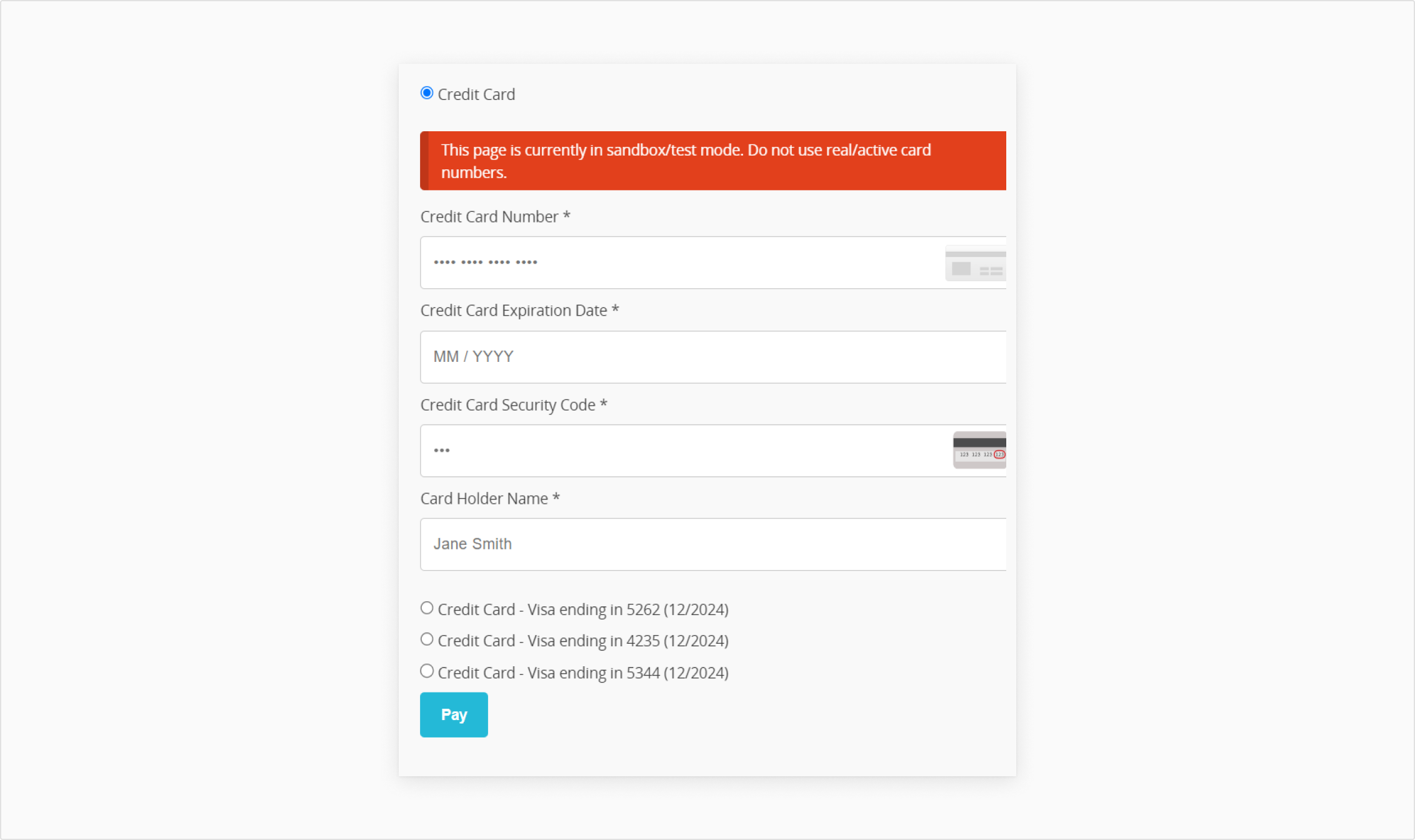
Use the test card numbers below to verify that your integration was set up properly. For testing, you can use any cardholder name, any expiry date in the future, and any CVN security code.
For a full list of test cards, see our Test Cards article.
Now that you’ve successfully installed the plugin and tested to see if it was installed properly, you’re all set to go live in the Production environment.
To do this, you’ll need to connect your integration with the gateway.
This section contains information on payment solutions such as card storage, and order management.
All card data is tokenized using our tokenization service.
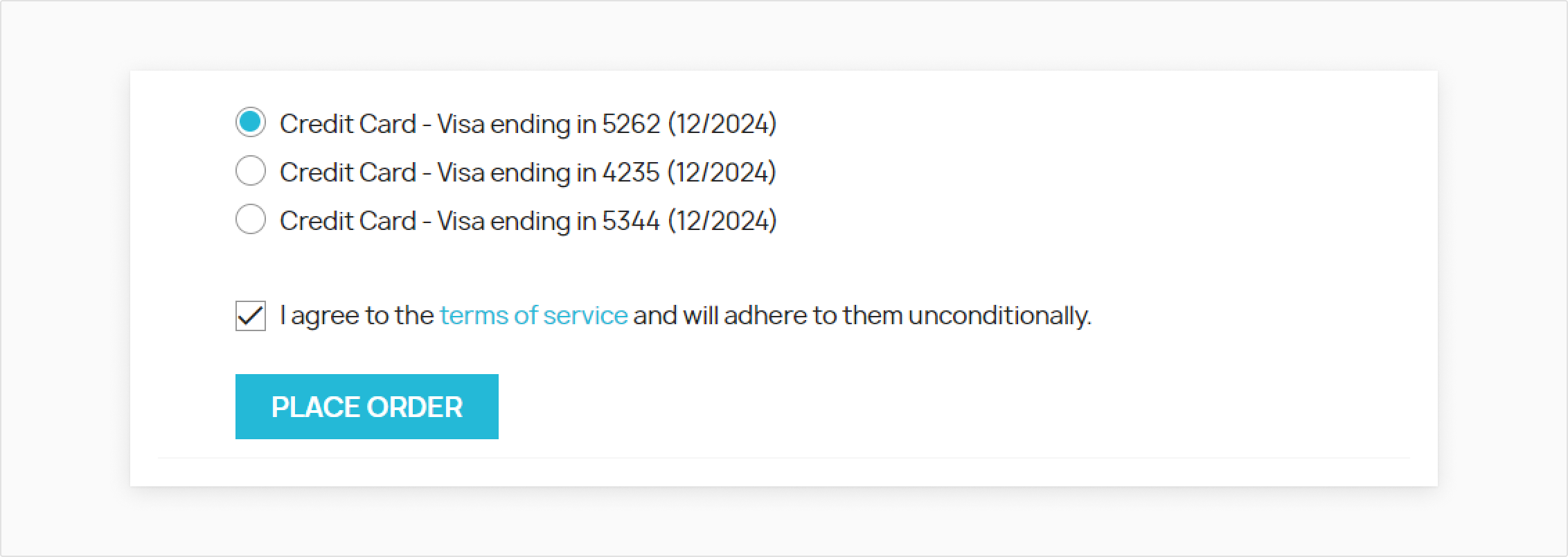
Registered customers can save their card information by selecting the “Save for later use” checkbox in the checkout form. The PrestaShop plugin securely stores card data with us and receives a token representation of the card, which is stored in the PrestaShop vault, with no increased PCI compliance requirements.
Merchants who use “Authorize only” at checkout will authorize the funds on the customer’s card, but the transaction won’t be placed in the settlement file until we capture it.
The amount of time the funds can remain ring-fenced on the customer's card may vary between different Issuers and Acquirers. Card brands like Visa and Mastercard have their own rules around how long transactions can wait to be captured.
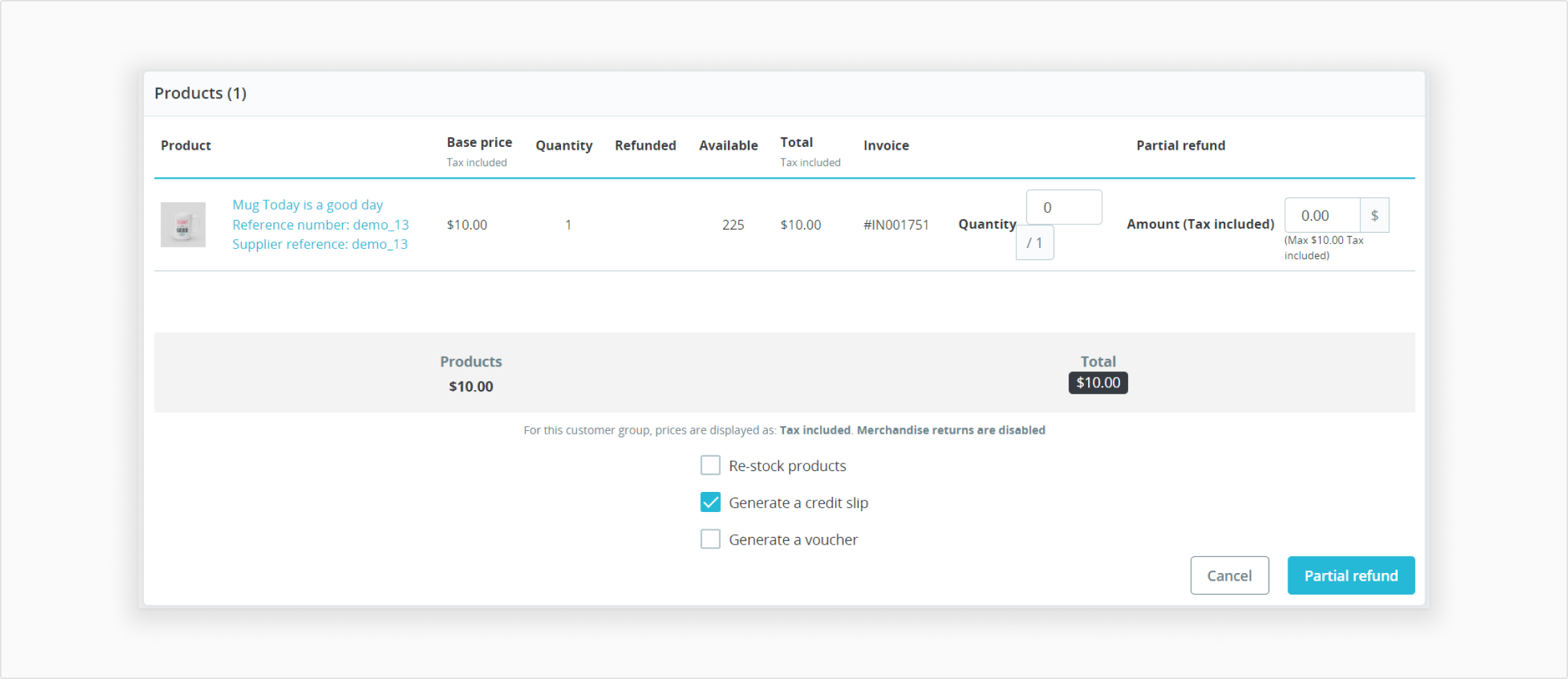
Once an order has been successfully settled with your Acquirer, you can credit the customer for 0% to 100% of the original order value. To do this, you must create a Partial Refund in PrestaShop.
Waiting for payment, a new Pay for Order button is displayed.