Loading...


Apple Pay can be used on the Hosted Payment Page (HPP) to provide payment for real-world goods and services. This guide focuses on implementing Apple Pay on the HPP via full-page redirect or iFrame and Lightbox, with steps for both SDK and non-SDK integrators. We also provide information on disabling Apple Pay for certain transactions, how to test your integration, and a preview of what Apple Pay looks like once successfully implemented (rollout).
To use Apple Pay on the HPP:
There are several ways to implement Apple Pay on the HPP: full-page redirect or iFrame and Lightbox.
To add Apple Pay as a payment option using full-page redirect (checkout starts and finishes on our domain), you simply need to contact customer support to enable the feature. The implementation process typically includes the following steps:
To integrate Apple Pay with a checkout using an iFrame or Lightbox, there are extra steps to take to ensure that your domain is registered with Apple.
For SDK integrators:
Ensure that you are using the most up-to-date version of our SDK.
Create a .txt file and name it:
_apple-developer-merchantid-domain-association_
Add the certification contents of this file to the file, and then upload to the .well-known folder in any/every root domain that hosts the HPP’s iFrame.
The URL should look like this:
https://YOURWEBSITE.COM/.well-known/apple-developer-merchantid-domain-association
Where YOURWEBSITE.COM is the root URL of your website.
Once this is complete, contact customer support with your URL so we can add it to our list of accepted domains for Apple Pay. In most cases, we can do this instantly, but if not, we'll contact you when it’s complete.
It’s possible to add multiple URLs to your account as long as each root url contains a /.well-known file that follows the processes above.
Payment processing with Apple Pay within a cross-origin iFrame requires a Permissions Policy and requires the payment page to allow third-party payments. If this is not done, the button won’t show in the iFrame. For this reason, it’s important to ensure that your checkout iFrame is structured like so:
<iframe src="checkout_URL" allow="payment"></iframe>Where checkout_URL is the URL dynamically generated by us.
Sandbox example:
<iframe src="https://pay.sandbox.realexpayments.com/hosted-payments/blue/card.html?guid=5eed61f1-48cd-4393-b020-9aa1bd03c692"allow="payment"></iframe>Production example:
<iframe src="https://pay.realexpayments.com/hosted-payments/blue/card.html?guid=5eed61f1-48cd-4393-b020-9aa1bd03c692"allow="payment"></iframe>The src attribute values dynamically change on each checkout.
Once this is complete, you can follow the steps above for SDK integrators to register your domain.
For information on cross-origin resource sharing (CORS), see the definition on Mozilla’s MDN website.
In certain circumstances, merchants enabled for Apple Pay may not want to offer this option at all times. To achieve this, you can hide the Apple Pay option displayed on the HPP for a particular request by sending HPP_ENABLE_APPLEPAY = False in the HPP POST request.
| Field | Description |
|---|---|
| HPP_ENABLE_APPLEPAY | Determines whether the Apple Pay button displays on the HPP. Works only when Apple Pay is enabled. Allowed value: False - Hides the Apple Pay button on the HPP. |
Apple Pay is available for testing in our Sandbox environment. For the full list of Apple Pay test values, see our Test Cards article.
To complete testing in Apple’s sandbox and access their test cards, you first need to set up an Apple account. More information can be found on Apple's website.
The amount specified in the request will map the tokenized data in the transaction to one of Apple's test values. For example, an amount of 10.00 will map to the successful Visa test card.
Once Apple Pay support is enabled, you should conduct testing in our Sandbox to ensure that your integration is seamless and functional. This may involve testing transactions using Apple devices at the point of sale on the HPP.
After successful testing, you can proceed with the rollout of Apple Pay as a payment option for customers.
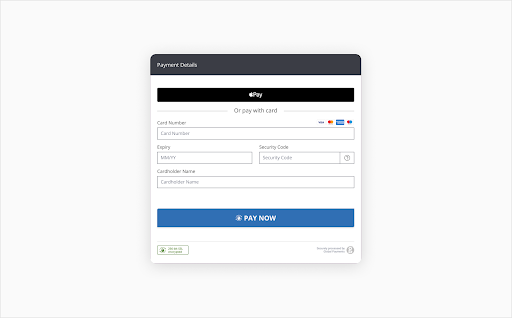
HPP - Apple Pay Option
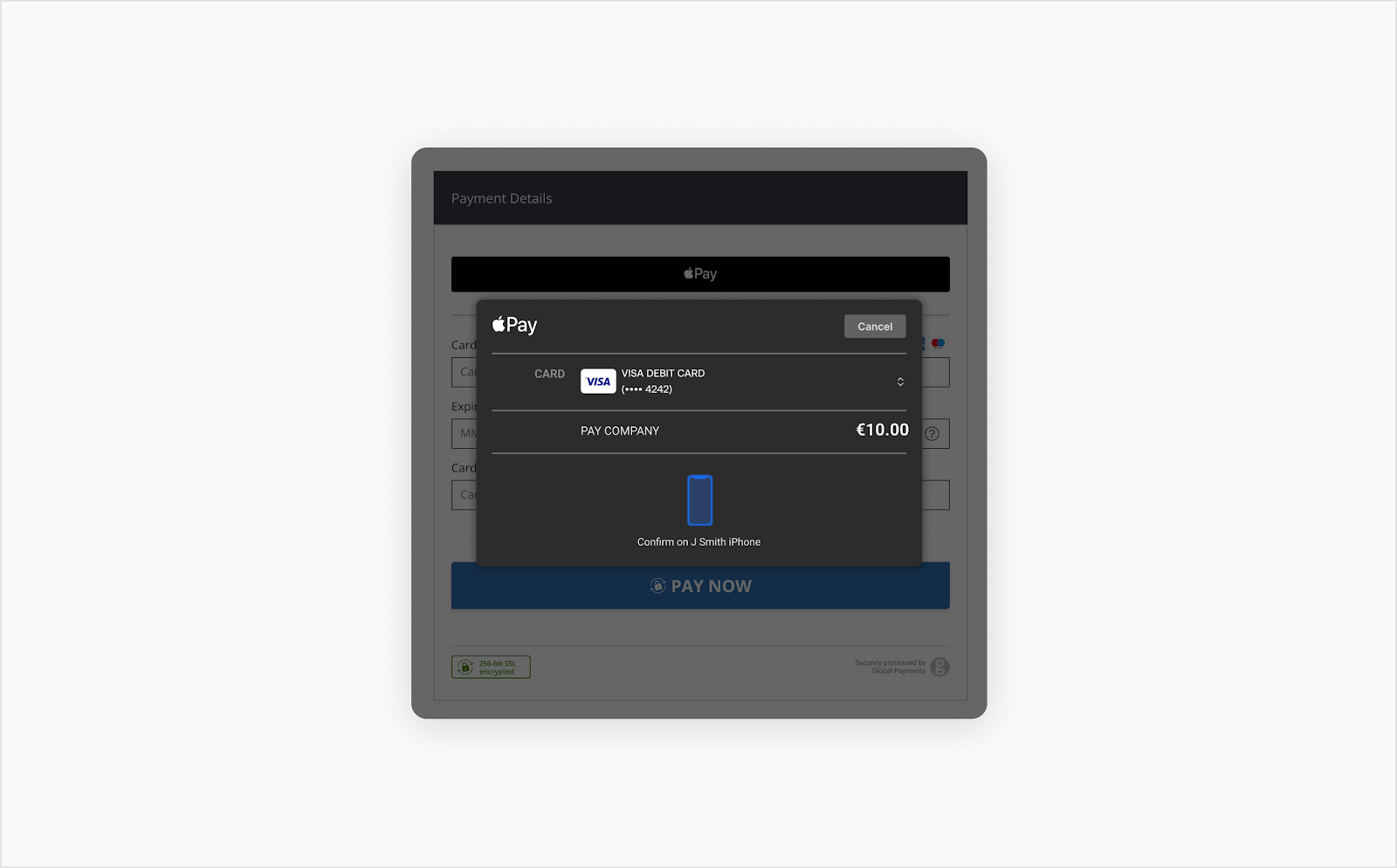
HPP - Apple Pay Option Selected
Explore more functionality to enrich your application or website. For the detailed HPP specification and a full list of features, see the HPP Reference section.
Integrate with alternative and local payment methods.
Add strong customer authentication to your online payment flow.