Loading...


At checkout, customers tend to stick to the payment method they’re most familiar with or select what they see first. For merchants offering Bank Payment as a newer option, implementing some simple user interface (UI) enhancements can help increase customer adoption rates. For example, you can:
This guide focuses on strategies you can use to optimize adoption of Bank Payment in your application or website.
The UI customization ideas presented in this article need to be implemented by merchants when developing their payment journey and are not included with the HPP. Our HPP handles redirection to the Bank Payment web app and the HPP card details page, as well as most PCI DSS compliance.
First, let’s start with what customers see if you don’t add any UI customization to the HPP. The default HPP shows the “Cards” section first with the “Pay with another payment method” section (that includes Bank Payment) under it. Most customers will select a card by default because “Cards” appears first and because paying by card is familiar and therefore more trusted. They may not know what Bank Payment is or how to use it.
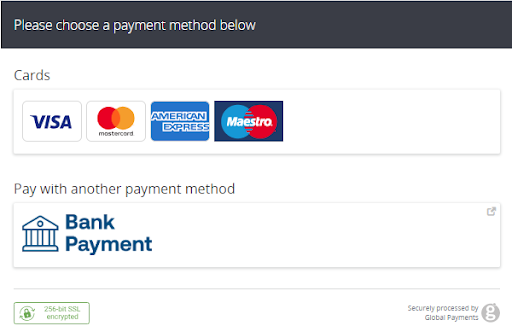
Default HPP with No UI Customization
Without UI customization, customers may be hesitant to try a new payment method like Bank Payment. This section provides ideas you can use for the HPP or in your own app or website via direct API integration. However, the advantage of using our HPP means an ease of integration, with PCI DSS compliance included (for card payments).
Customers tend to select what they see first on a payment page. So, you may want to alter the UI to make Bank Payment appear first in the list of payment options. You can also have Bank Payment preselected as the default option.
Consider using a “recommended” label if you want to steer customers toward Bank Payment when it’s the better option — for example, if you offer both Bank Payment and Bank Transfer, as shown below. Bank Payment is easier because it doesn’t require the customer to manually enter their account details, which can be tedious and prone to error. In this case, Bank Payment should be recommended.
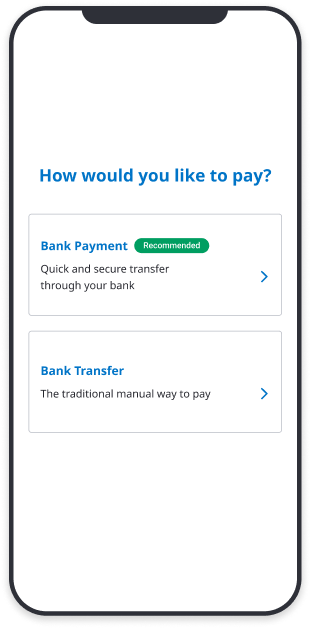
Bank Payment “Recommended” Example
There are several ways to use UI text to ease a customer’s hesitance to try a new payment method. Here are some examples of some helpful and explanatory UI text you can add.
Let the customer know what happens after they click Bank Payment:
“You’ll be redirected to a new page where you can select your bank. You then make a payment directly from your account.”
Provide some explanation on what Bank Payment is:
“If you have an app for your bank, we’ll securely connect you to approve the payment.”
“Pay via online bank directly from your current account.”
Describe how it works:
“Select your bank. Review the payment information. Get redirected to your online bank. Authorize the payment.”
Highlight the benefits:
“No need for account details”
“No need to authenticate via a text/SMS code”
“Quick and secure way to pay”
“Instant payment”
“No manual entry of your data”
“No hidden fees”
“Simple. Fast. Secure”
“Leverage your bank security”
Highlight the convenience:
“No card with you? Pay securely with Bank Payment”
Research shows that preselecting a payment method can influence customers toward a desired checkout option. The following examples show Bank Payment as the preselected option for both a mobile app and a web page.
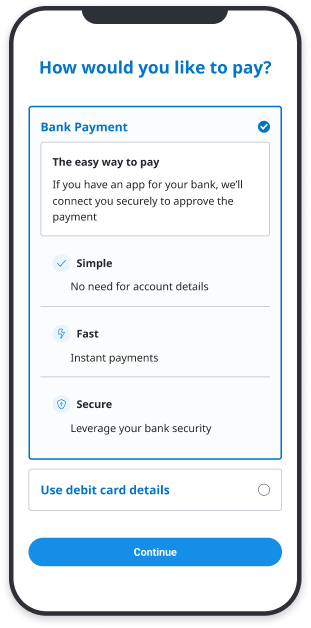
Preselected Example - Mobile App
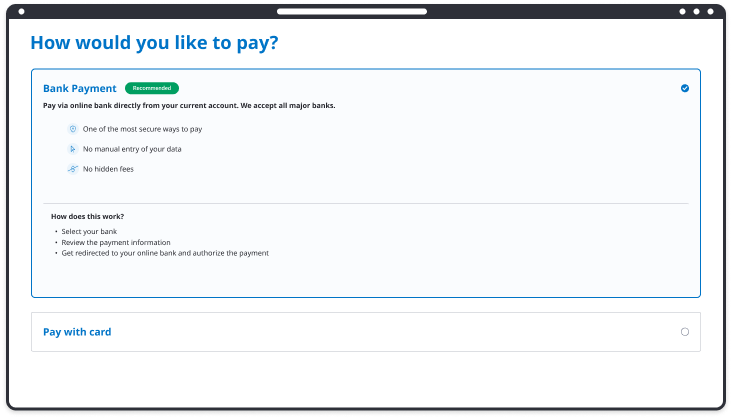
Preselected Example - Web Page
This section focuses on using logic in the HPP to trigger instant actions or display one payment method over another, thus controlling the customer’s payment journey. This logic focuses on one optional field in the request, PM_METHODS. We focus on two use cases: showing only one payment method in certain situations and adding a UI layer before entering into the individual HPP for a specific product.
For more information on direct API integration for Open Banking, see our Open Banking guide.
You can control the payment journey by filtering which payment methods to display to the customer on the HPP. The default is to offer both card payment and Bank Payment, but in certain circumstances, you may want to display only Bank Payment or only card payment.
For example, say you want to control which payment options to display based on the transaction value:
To filter which methods to display to the customer, you would use the (optional) PM_METHODS field in the request. This field can be used to control some logic in the HPP and what payment methods are displayed.
If you use only ob in the PM_METHODS field, the customer will be redirected directly into the Bank Payment web app.
<input type="hidden" name="PM_METHODS" value="ob">If you use only cards in the PM_METHODS field, the customer will be redirected to the HPP card details page.
<input type="hidden" name="PM_METHODS" value="cards">Incidentally, if the PM_METHODS field is not included in the request or if both “ob” and “cards” are used as the value, customers will see the default Hosted Payment Page (HPP) with both payment options. In this case, the order of these two payment methods is not customizable.
Using the very same logic as mentioned previously, you can instruct the HPP to trigger a request for a particular payment method and set your own UI in front of this request (for more UI ideas, see the UI customization ideas section). You’ll need to do your own development work to display the button of this payment method in the UI of your app or website. This can be done in various ways, such as via iFrame, Lightbox, or a redirect.
This example shows “trigger” payment buttons for Pay by Card and Bank Payment.
Clicking the Pay by Card button would directly open the HPP for the customer to enter their card details:
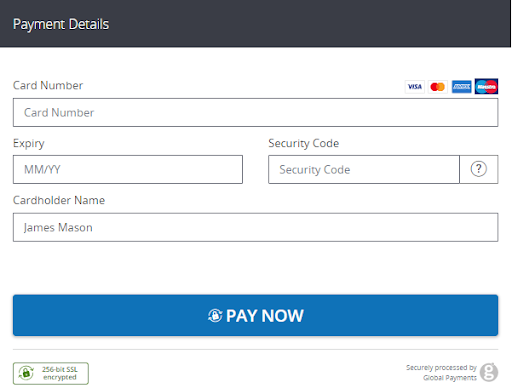
HPP Card Details Page
For this, you would use only cards in the PM_METHODS field.
<input type="hidden" name="PM_METHODS" value="cards">Clicking the Bank Payment button would redirect the customer to the Bank Payment web app to select their bank, as shown below.
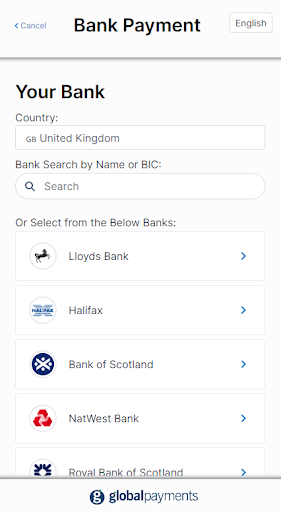
Bank Payment Web App
For this, you would use only ob in the PM_METHODS field.
<input type="hidden" name="PM_METHODS" value="ob">